

CodeBuddy Built-in Slash Commands
Overview
CodeBuddy includes 7 efficient slash commands focusing on the full code development lifecycle, helping developers quickly complete core development tasks such as project initialization, code review, test generation, and issue fixing.
How to Use
Type / in the chat box, and the system will automatically display a slash command list for you to choose from. The list includes:
- Built-in Slash Commands: 7 preset commonly used commands
- Custom Slash Commands: User-created personalized commands
You can select the desired command from the list and then enter relevant parameters as prompted.
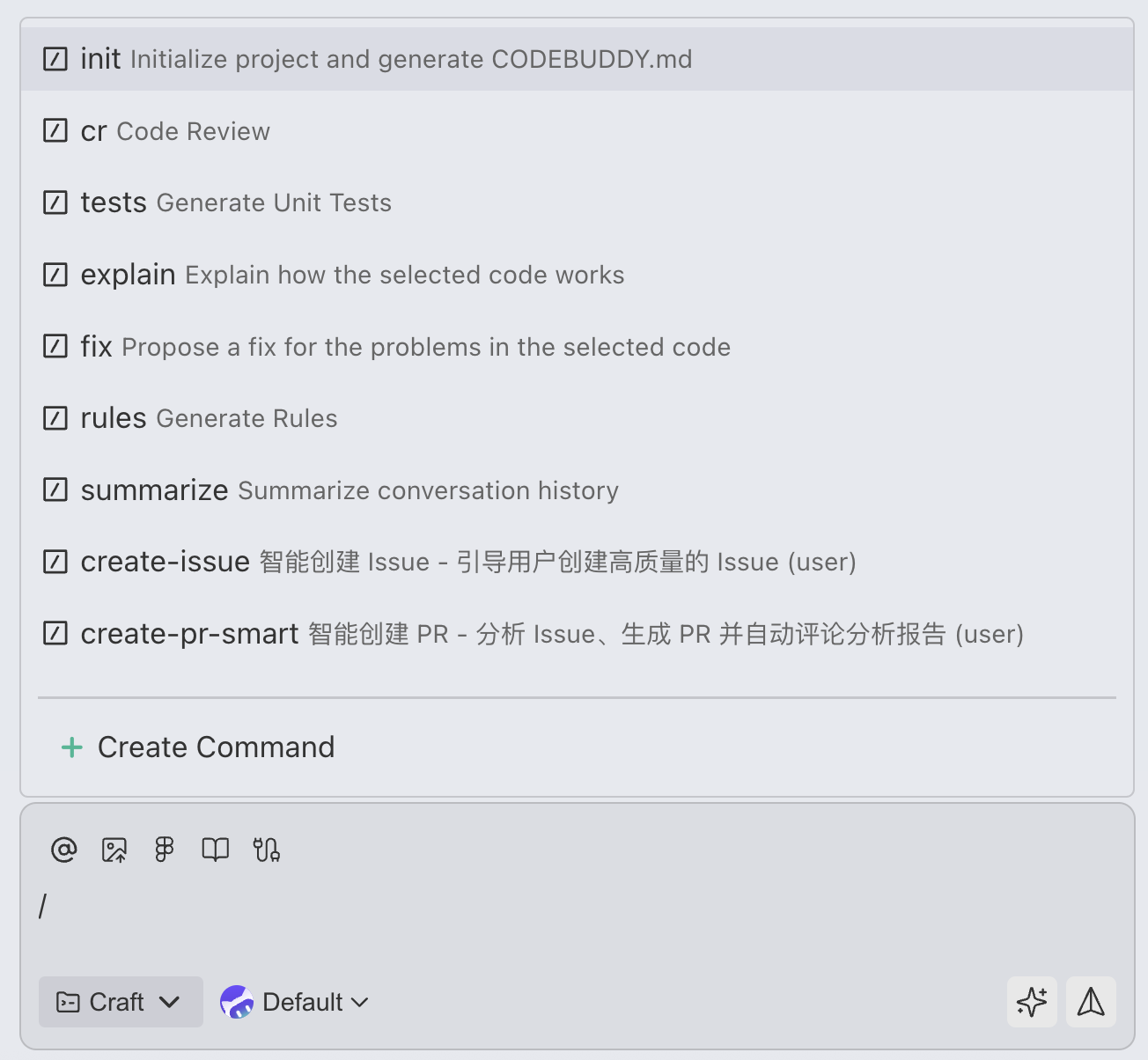
Note:
- Slash commands only appear and are selectable when the chat input box is empty.
- Each message can only contain one
/command; multiple commands cannot be combined. - Custom commands created are at the project level. (Compatible with CodeBuddy Code's user-level commands at ~/.codebuddy/commands/. Future IDE versions will add an entry for creating user-level custom commands.)
Built-in Slash Commands Details
/init - Initialize Project and Generate CODEBUDDY.md
Description: Quickly initialize project structure and automatically generate CODEBUDDY.md configuration file.
Use Cases:
- Quickly scaffold project structure when creating new projects
- Add CodeBuddy configuration to existing projects
- Standardize project documentation and configuration management
Example:
/init/summarize - Compress Conversation Context
Description: When conversations become too long, use AI-driven summarization to compress lengthy chat context and ensure efficient conversation flow.
Use Cases:
- Manually trigger when conversation content is too long to manage context
- Continue working efficiently without losing important information
- Need to continue conversation in the same session but context window is approaching limits
- Make room for new conversations when dialogue grows beyond model's context window limits
Usage Recommendations: To ensure model performance and control credit consumption, it's recommended to keep the context window below 100K. When context approaches or exceeds this limit, use the /summarize command to compress the conversation.
How It Works: When dialogue grows and exceeds the model's context window limits, the system will automatically or manually summarize older messages:
- When exceeding limits: Latest messages are truncated due to exceeding context window
- After summarization: Old messages are compressed into "summary content", making room for new conversations
Usage:
- Manual trigger: Enter the command
/summarizein chat - Automatic trigger: Automatically summarizes when conversation exceeds context window limits
Note: The content output by the model is just a summary display. The actual compressed information retained in the background is more detailed and structured than the output summary, ensuring subsequent conversations can continue previous context.
Example:
/summarize/rules - Auto-generate Rule Files
Description: Automatically generate code standards, lint rules, development guidelines, and other rule files based on project requirements.
Use Cases:
- Establish coding standards in early project stages
- Unify code style for team collaboration
- Generate ESLint, Prettier, and other configurations
- Create code review checklists
- Automate quality management
Generated Rule Types:
- Code style rules
- Naming conventions
- File organization rules
- Git commit conventions
- Project best practices
Examples:
/rules Generate TypeScript code standards
/rules Create Git commit conventions
/rules package.json Generate ESLint configuration based on project dependencies
/explain - Explain How Code Works
Description: Deeply analyze code logic and have CodeBuddy explain code's working principles and design philosophy in easy-to-understand language.
Use Cases:
- Understand complex code logic
- Learn new codebases
- Quickly understand implementation during code reviews
- Technical sharing and documentation writing
Explanation Content:
- Overall code architecture
- Core algorithm logic
- Data flow processes
- Key design decisions
Examples:
/explain test.py
/explain src/utils/algorithm.ts Explain the implementation principle of this algorithm
/explain UserService.java Describe the responsibilities of this service class
/fix - Fix Code Issues
Description: Automatically identify and fix bugs, errors, and issues in code.
Use Cases:
- Quickly fix compilation errors
- Resolve runtime exceptions
- Fix lint errors
- Handle type errors
- Resolve logic bugs
Fix Capabilities:
- Syntax errors
- Type errors
- Logic errors
- Performance issues
- Security vulnerabilities
Examples:
/fix main.py Fix Python syntax errors
/fix components/Button.tsx Resolve TypeScript type errors
/fix login.js Fix null pointer exception in login logic
/tests - Generate Unit Tests
Description: Automatically generate comprehensive unit test cases for code to improve code test coverage.
Use Cases:
- Quickly generate test cases for new features
- Improve project test coverage
- Supplement missing boundary condition tests
- TDD (Test-Driven Development) practice
Generated Content:
- Normal scenario tests
- Boundary condition tests
- Exception scenario tests
Examples:
/tests utils.js Generate test cases for utility functions
/tests UserController.java Generate complete unit tests
/tests src/api/auth.ts Add test coverage for authentication module
/cr - Code Review
Description: Conduct comprehensive code review, checking code quality, potential issues, performance optimization points, and best practice compliance.
Use Cases:
- Self-check code before Pull Request submission
- Quality assessment before code refactoring
- Learn best practices from others' code
- Identify potential bugs and security risks
Review Dimensions:
- Code standardization
- Performance issues
- Security vulnerabilities
- Maintainability
Examples:
/cr app.py Review Python code quality
/cr src/components Review entire component directory
/cr database.js Focus on checking security issues like SQL injection
Custom Slash Commands
In addition to built-in slash commands, CodeBuddy also supports creating custom slash commands. You can encapsulate frequently used prompts, workflows, or specific tasks into reusable custom commands based on your workflow needs.
Creating Custom Commands
After typing /, select the "Custom Slash Command" option from the command list to enter the custom command creation interface. You can:
- Define command name and description
- Set trigger prompts or execution scripts
- Configure command parameters and input format
- Specify applicable working directory or file types
Use Cases
- Encapsulate team-specific code generation templates
- Create project-specific quick operation commands
- Define standardized code review processes
- Automate repetitive development tasks
Through custom slash commands, you can significantly improve development efficiency by solidifying personal or team best practices into reusable commands.