

Import Designs from Figma
Feature Overview
CodeBuddy IDE provides powerful design-to-code conversion capabilities. Through the built-in Figma2Code integration, you can directly generate high-quality production code from Figma designs. This feature supports precise design reproduction, significantly improving development efficiency.
Prerequisites
⚠️ Important: The following conditions must be met to use this feature:
- Figma Account Permissions: You need to have edit or developer access to the Figma design file
- File Access Permissions: Ensure you have permission to access the Figma design file you want to import
- Team Collaboration Permissions: For team projects, you need to obtain the appropriate collaboration permissions
If you don't have the required permissions, please contact the design file owner or team administrator to request access.
Steps
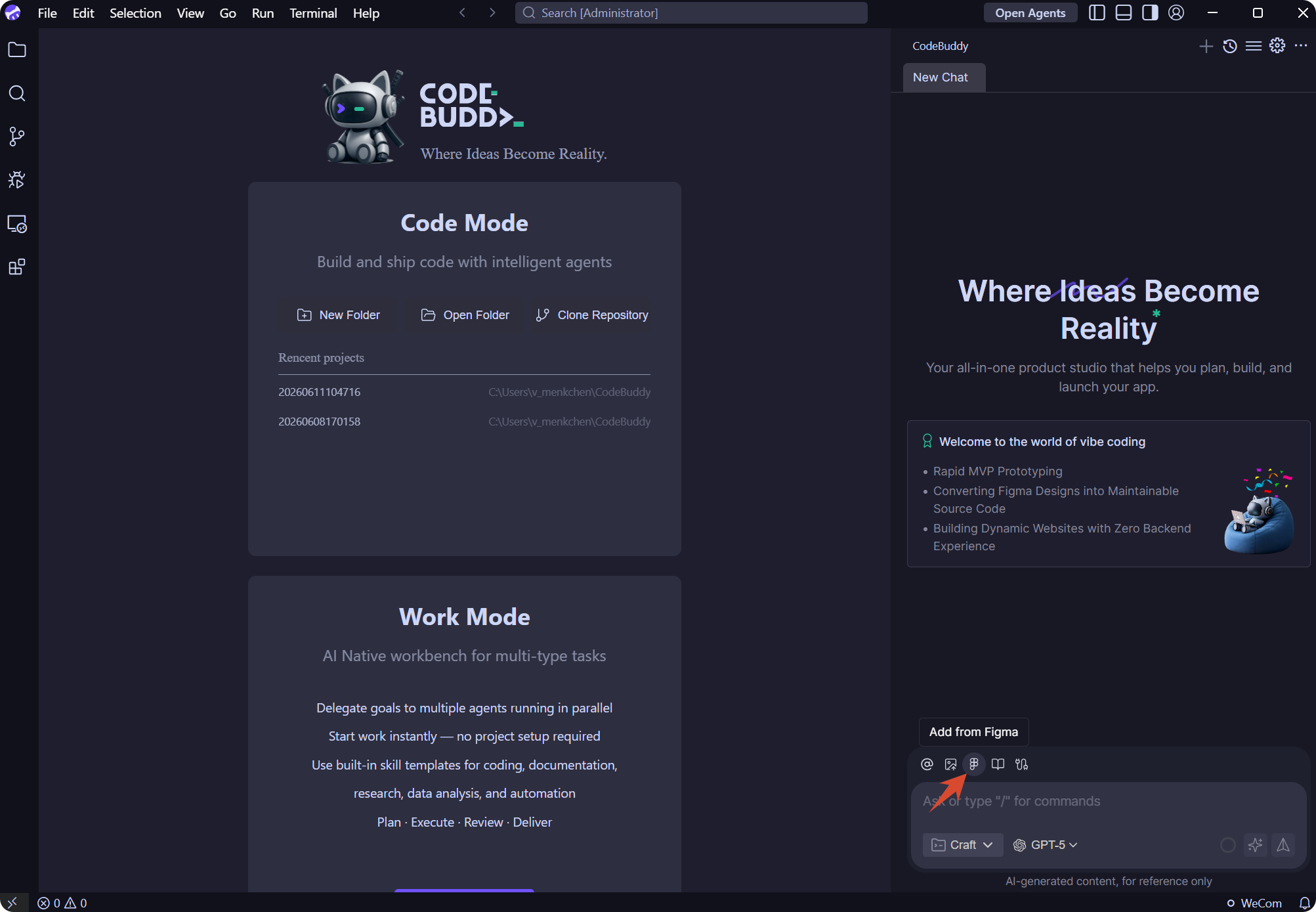
1. Launch Figma Integration
In the Craft Agent interface, click the Figma button to start the import process.
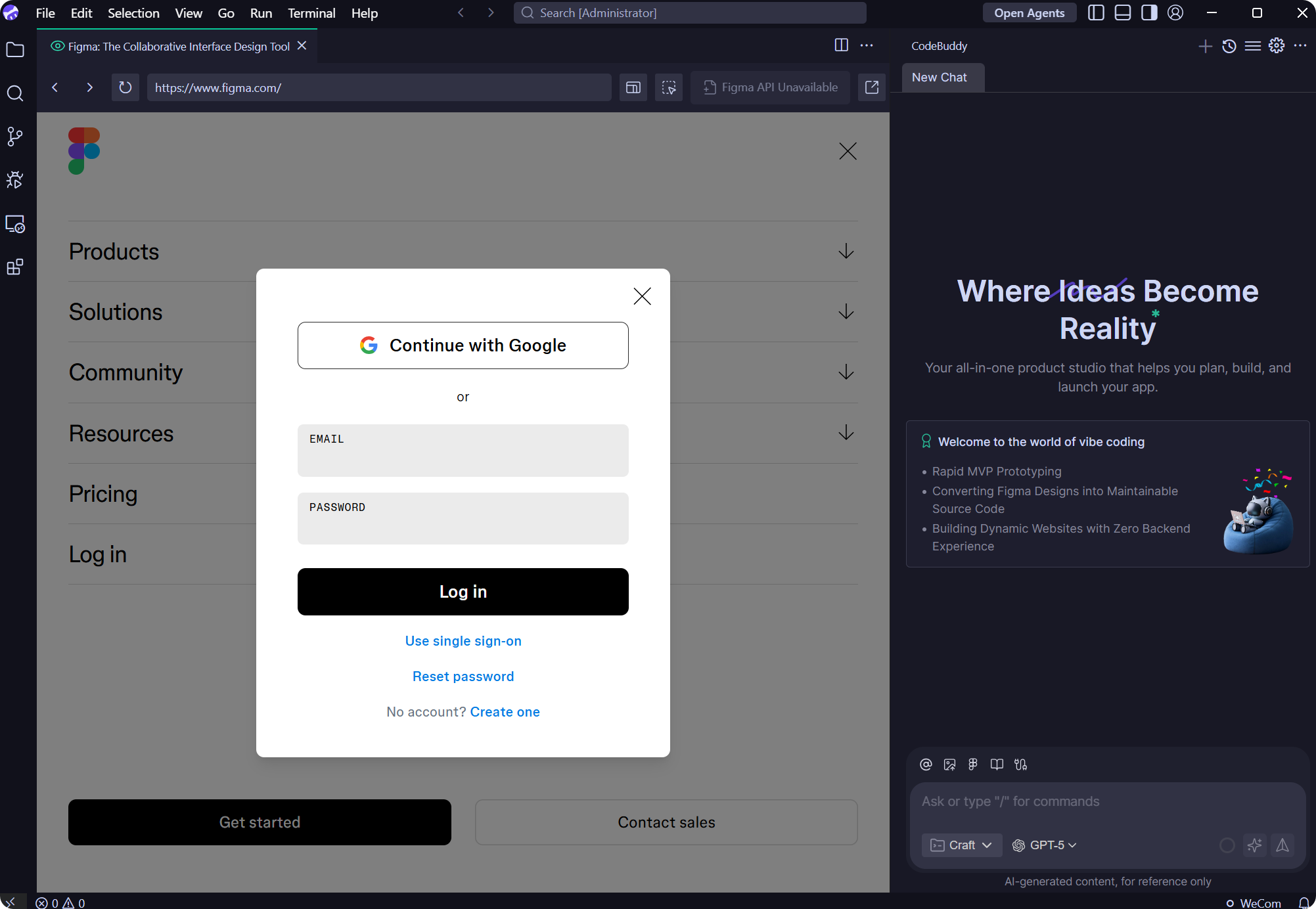
2. Authorize and Log in to Figma
The system will redirect you to the Figma website. Please log in and authorize using your Figma account.
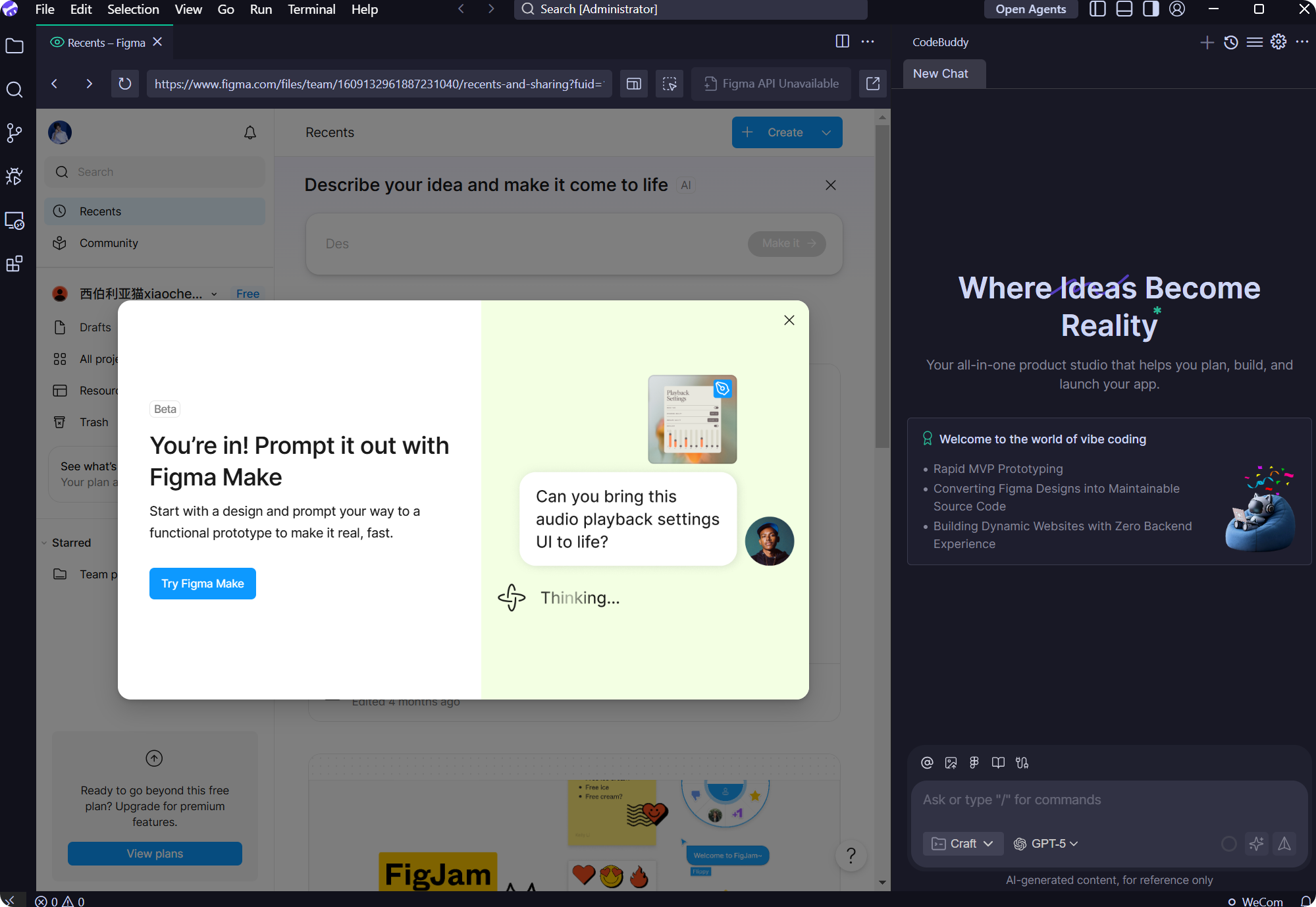
3. Confirm Authorization Success
After logging in, you will see an authorization success confirmation page.
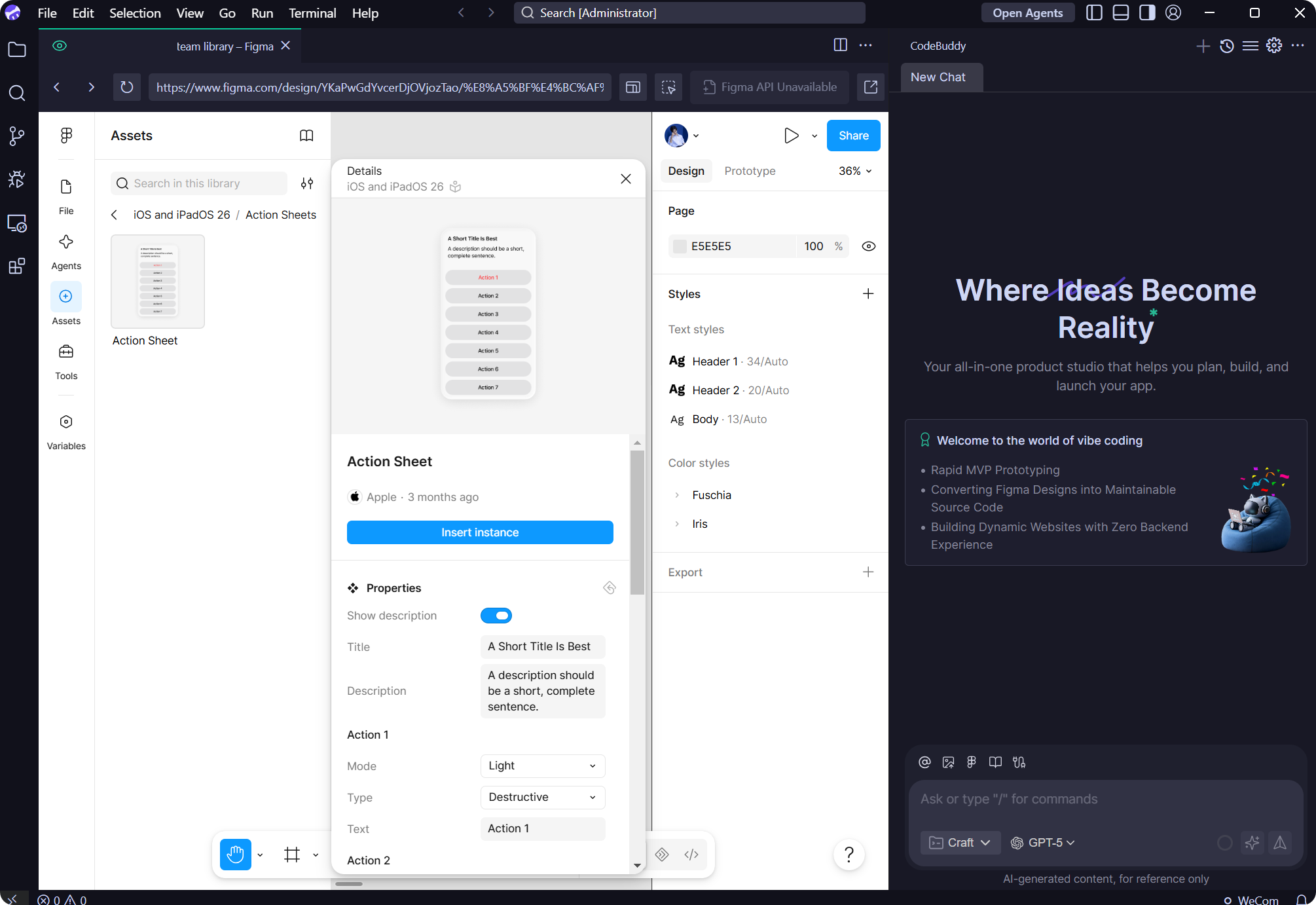
4. Select Design File
Choose the design file you need from your Figma workspace, and click to open it and enter the editing interface.
5. Select Design Components
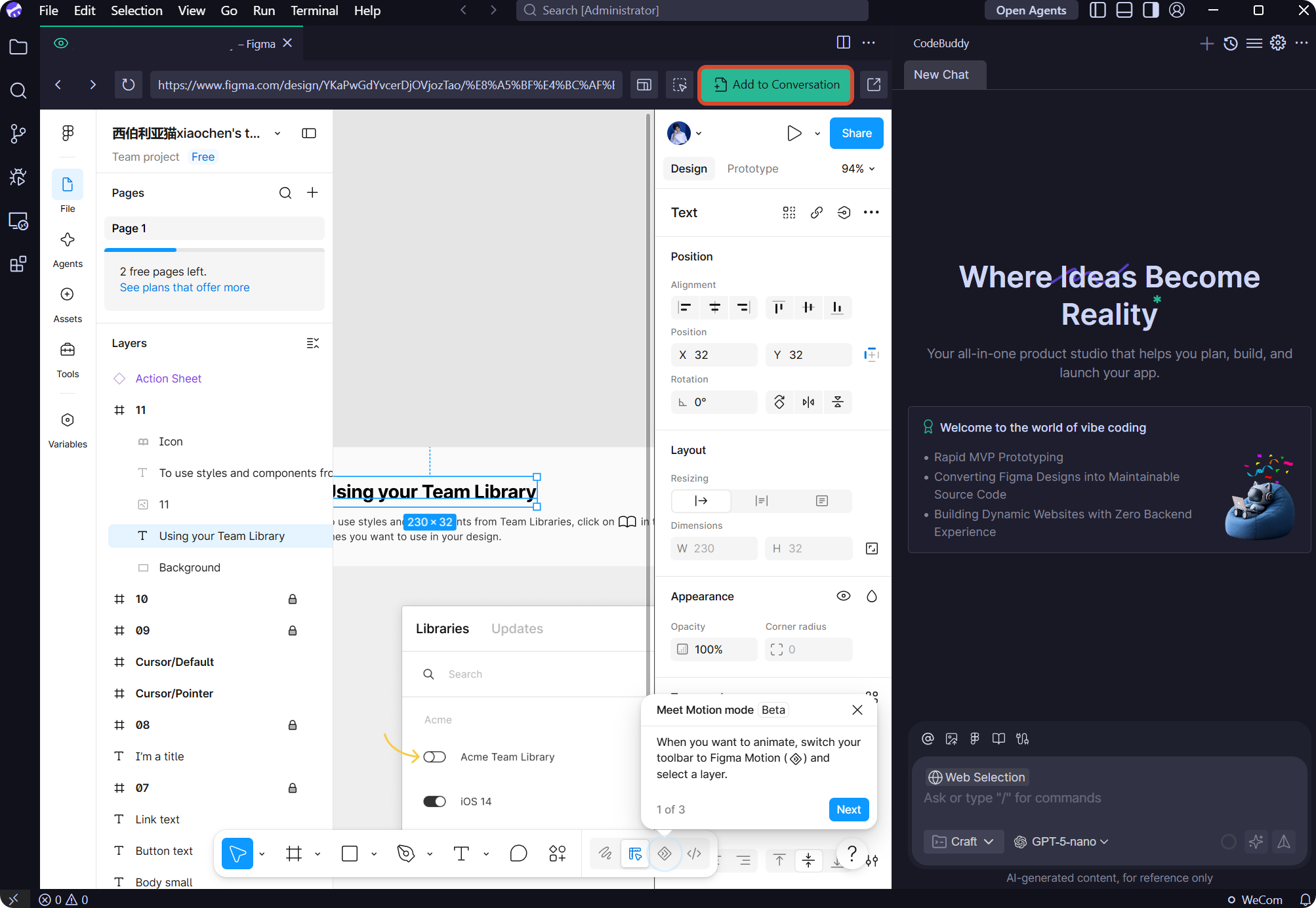
In the Figma Layers panel:
- Select the components or design areas you want to convert
- Click the Add to Conversation button in the top-right corner
- The selected design will be imported into CodeBuddy IDE
6. Start Code Generation
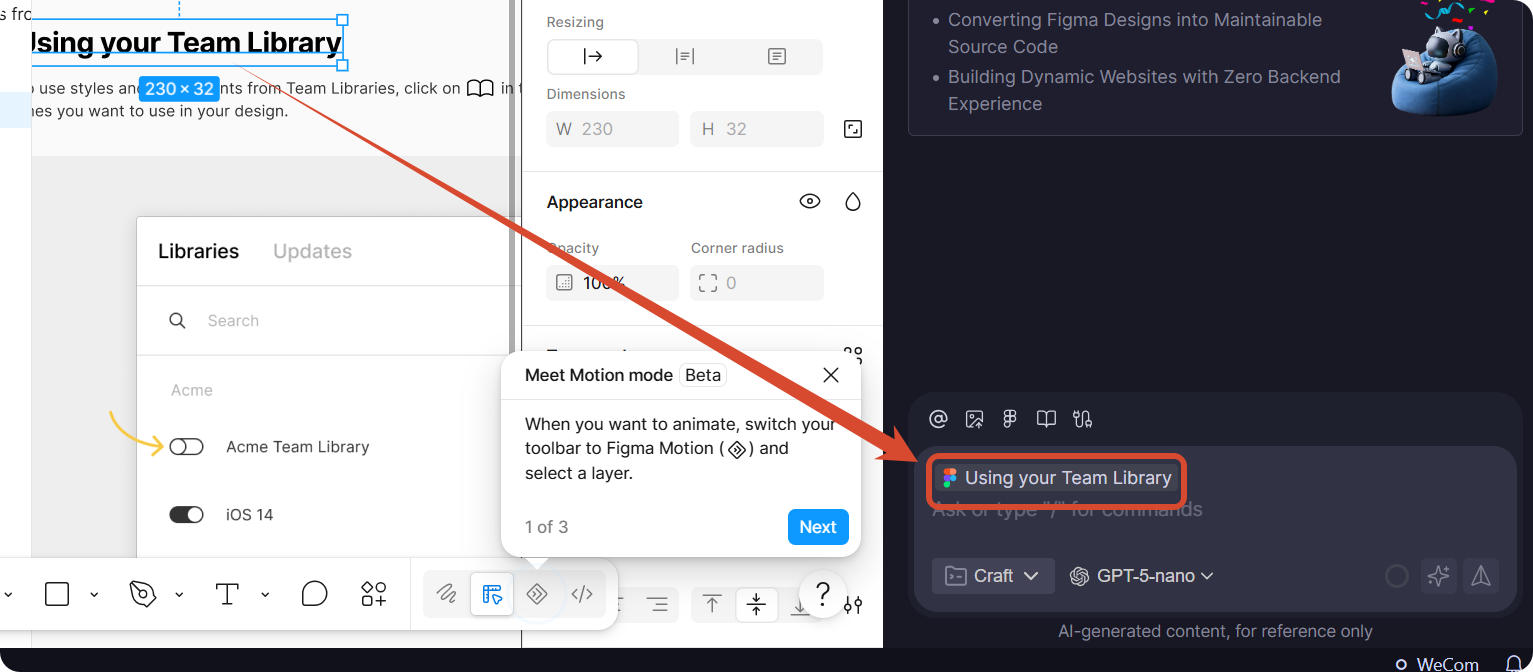
After the design is successfully imported, it will be displayed in the IDE conversation panel. Now you can:
- Describe your specific development requirements in the input box
- The AI will automatically generate corresponding code based on the design
7. Preview Generated Results
After code generation is complete, you can view the results in the Preview panel.
Tips
- Precise Selection: When selecting components in Figma, it's recommended to select complete design modules for better conversion results
- Describe Requirements: When generating code, provide detailed descriptions of functional requirements and technology stack preferences, and the AI will generate code that better matches your expectations
- Iterative Optimization: You can continue to chat with the AI based on the generated code to refine functionality and adjust styling
Through the Figma integration feature, designers and developers can collaborate seamlessly, quickly transforming design concepts into runnable code.