

FAQ
Login Issues
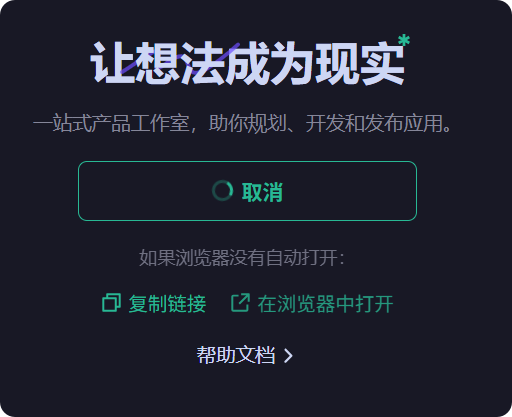
Q: Stuck on the login screen and unable to complete login
- Select Open in Browser to relaunch the login authentication window.
- Select Copy Link, open a browser manually, then paste the link using Ctrl+V or right-click → Paste to complete the login authentication.
Get logs
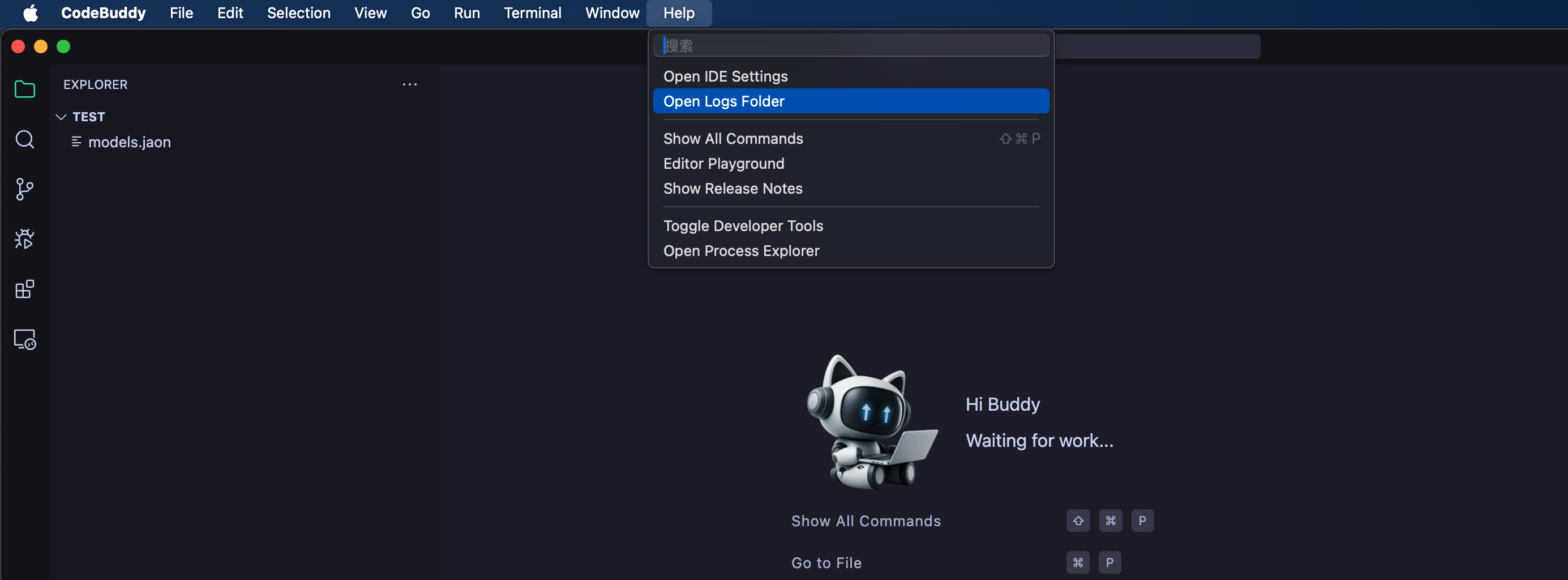
MAC: Open CodeBuddy IDE, click Help in the top menu ---> Open Log Folder, and find the corresponding log (.zip) package.
Windows:
Open CodeBuddy IDE, click Help in the top menu ---> Open Log Folder, and find the corresponding log (.zip) package.
Manual path:
C:\Users\<your-username>\AppData\Roaming\CodeBuddy\logs(replace<your-username>with your Windows system username)
Remote Development
Unable to Connect
Q: Remote SSH Plugin Request/Login Error
First, test whether the local IDE can log in normally. If there's a request issue on the remote server, confirm whether the remote server has external network access, using commands like ping + URL to check.
If login fails, troubleshoot as follows:
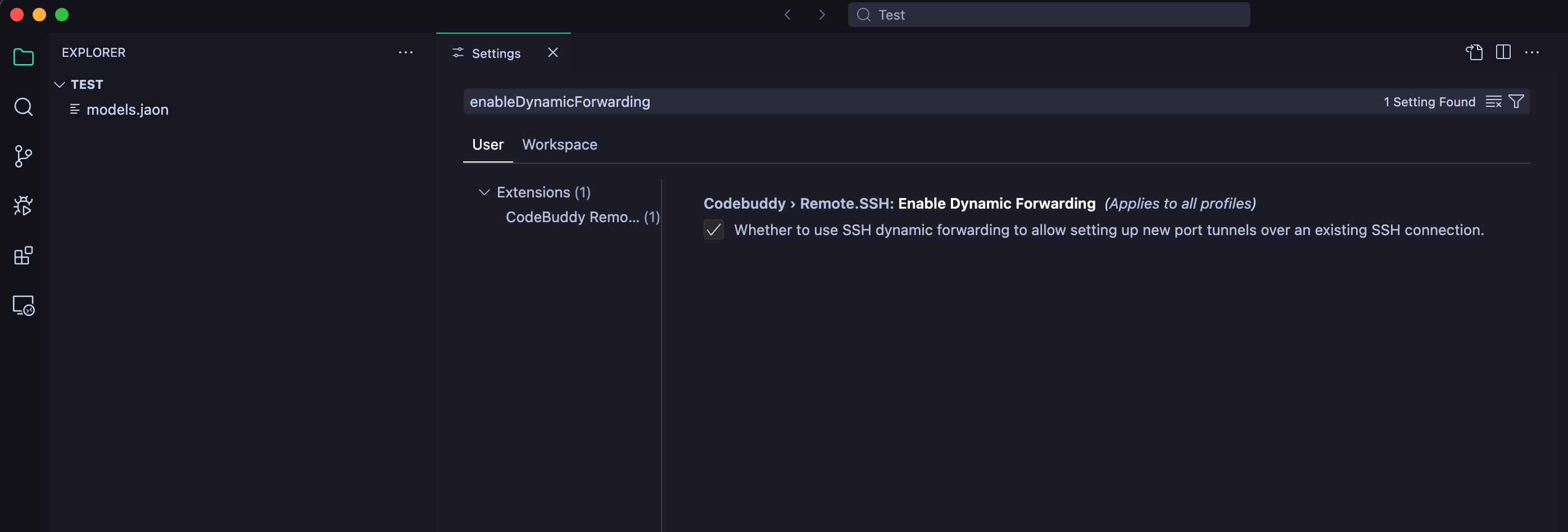
Open CodeBuddy IDE settings
Ctrl/Cmd+,Search for codebuddy.remote.SSH.enableDynamicForwarding
Uncheck this option (set to false)
Reconnect to SSH
Q: Error Opening Container
This is because CodeBuddy uses VSCode's RemoteSSH and dev-container plugins, and the error comes from VSCode plugins. When using CodeBuddy IDE, you don't need to install VSCode's official RemoteSSH and dev-container plugins. The IDE has these plugins built-in. You need to uninstall the VSCode plugins and use the built-in plugins to connect.
Network Check
Q: What should I do if Proxy Detection shows Failed/Warning (for example, connect ECONNREFUSED)?
Possible causes
- Proxy mode is enabled, but the proxy service is not running, the port is unreachable, or the address is incorrect.
- Proxy protocol mismatch (use
HTTPproxy whenever possible). - Local security software or corporate network policy is blocking the proxy port.
Troubleshooting steps
- Open IDE settings and verify proxy configs (
http.proxy,codingcopilot.httpProxySettings,codingcopilot.httpProxyURL). - Validate proxy availability in terminal:
- CN edition:
curl -x http://127.0.0.1:8004 -v https://copilot.tencent.com - International edition:
curl -x http://127.0.0.1:8004 -v https://www.codebuddy.ai.
- CN edition:
- If it fails, fix the proxy service first (process/port/protocol). If proxy is not required, disable it temporarily and retry.
- Open IDE settings and verify proxy configs (
Q: How do I troubleshoot Hosts Resolution when it shows Warning/Error?
Possible causes
- Legacy
hostsmapping points the domain to an incorrect IP. - DNS service is unstable or cannot resolve the target domain.
- VPN/system proxy affects the local resolution path.
- Legacy
Troubleshooting steps
- Check whether
hostscontains mapping for the target domain:- macOS/Linux:
/etc/hosts - Windows:
C:\Windows\System32\drivers\etc\hosts
- macOS/Linux:
- Compare resolver results:
- CN edition:
nslookup copilot.tencent.comordig copilot.tencent.com - International edition:
nslookup www.codebuddy.aiordig www.codebuddy.ai.
- CN edition:
- Remove incorrect mapping, flush DNS cache, then run network diagnostics again.
- Check whether
Q: What should I do if Service Connectivity shows Failed (HTTP Failed)?
Possible causes
- Endpoint is resolvable, but HTTP request is blocked, timed out, or TLS handshake fails.
- Certificate chain, corporate gateway, or proxy auth causes request failure.
- Temporary network jitter causes intermittent failures.
Troubleshooting steps
- Check service reachability:
- CN edition:
curl -v https://copilot.tencent.com - International edition:
curl -v https://www.codebuddy.ai.
- CN edition:
- Check timeout behavior:
- CN edition:
timeout 30s curl -v https://copilot.tencent.com - International edition:
timeout 30s curl -v https://www.codebuddy.ai.
- CN edition:
- If failed, focus on error keywords (
timeout,certificate,proxy,connection refused) and continue troubleshooting accordingly.
- Check service reachability:
Q: How should I handle TCP Connection Latency showing Failed/Warning?
Possible causes
- Direct connection to target host
443is blocked by firewall or enterprise policy. - Network quality issues cause connection timeout.
- In proxy mode, direct connection may fail while proxy path is still available.
- Direct connection to target host
Troubleshooting steps
- Test TCP connectivity (macOS/Linux):
- CN edition:
nc -vz copilot.tencent.com 443 - International edition:
nc -vz www.codebuddy.ai 443.
- CN edition:
- If unreachable, verify outbound
443rules on local/corporate firewall. - If proxy is enabled and product works, combine this result with
Proxy Detectionfor overall judgment.
- Test TCP connectivity (macOS/Linux):
Q: What should I do when Packet Loss is high or reaches 100%?
Possible causes
- Real packet loss on the network path.
- ICMP (Ping) is blocked by target or intermediate network devices.
- Local environment does not support
pingor output cannot be parsed.
Troubleshooting steps
- Check whether
Sent/Receivedstays abnormal across multiple runs. - Validate with terminal:
- CN edition:
ping -c 18 copilot.tencent.com(Windows:ping -n 18 copilot.tencent.com) - International edition:
ping -c 18 www.codebuddy.ai(Windows:ping -n 18 www.codebuddy.ai).
- CN edition:
- If business traffic is normal but ICMP loss is 100%, treat it as ICMP-restricted and rely on
Service Connectivity+TCPfor final judgment.
- Check whether
Q: How do common error codes map to network checks?
Possible causes
3002/3003are usually related to path connectivity.3005is often temporary jitter or timeout.10001is usually proxy configuration related.
Troubleshooting steps
- For
3002/3003, prioritize theTCP Connection LatencyandService Connectivitychecks. - For
3005, retry first; if it happens repeatedly, focus onPacket LossandService Connectivity, and verify that prompt/context size is within the window (~200K). - For
10001, verify proxy protocol and address, and prefer anHTTPproxy.
- For
Figma
Q: Cannot Add Figma to Conversation?
You need to apply for Figma editing and development permissions, because Figma view-only permissions don't open the API by default.
For developers, you can just enable development permissions. You need to switch to normal mode first, then switch to development mode (if switching fails on the Figma webpage, you need to switch manually once).
Plugin
Q: Installation Issues
This is usually caused by previously installed incorrect plugin versions or plugin migrations. Choose one of the following solutions:
Solution 1:
Uninstall the plugin;
Clear cache vsix:
Help > Open Logs Folder > go back to parent directory > CachedVSIXsfolder;
(~/Library/Application\ Support/CodeBuddy\ CN/CachedExtensionVSIXs)
Clear local plugins, delete .codebuddycn/extensions/${plugin-id}
- Reinstall from the plugin marketplace;
Solution 2:
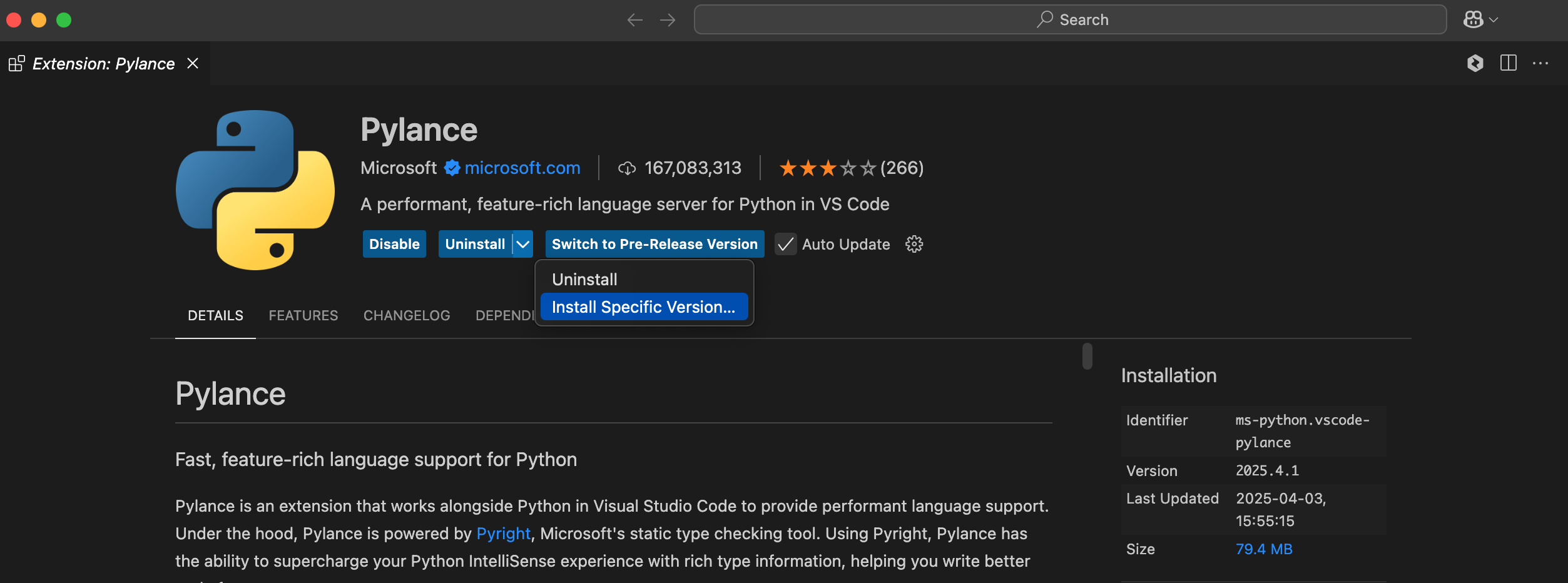
Uninstall the plugin, check the plugin version corresponding to VSCode 1.100.0, and install the specified version.
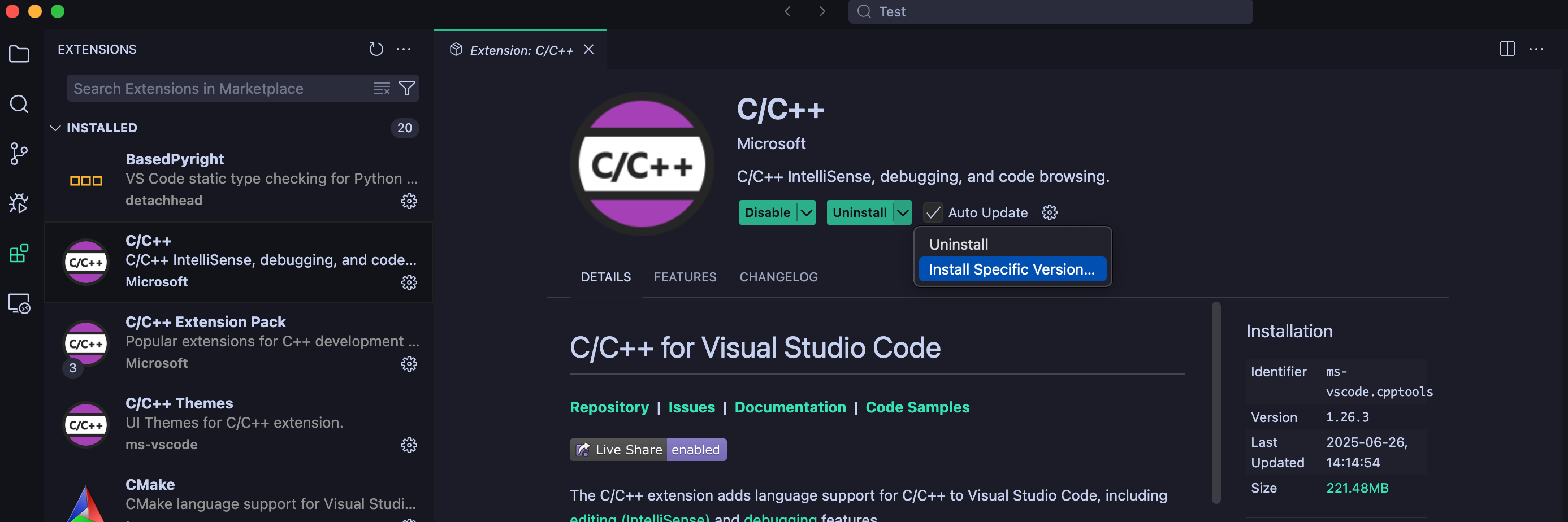
Q: Python Has No Syntax Highlighting, Cannot Jump to Definition
Pylance validates Microsoft's own signature, which causes issues running on third-party platforms.
- Uninstall
Pylance - Install
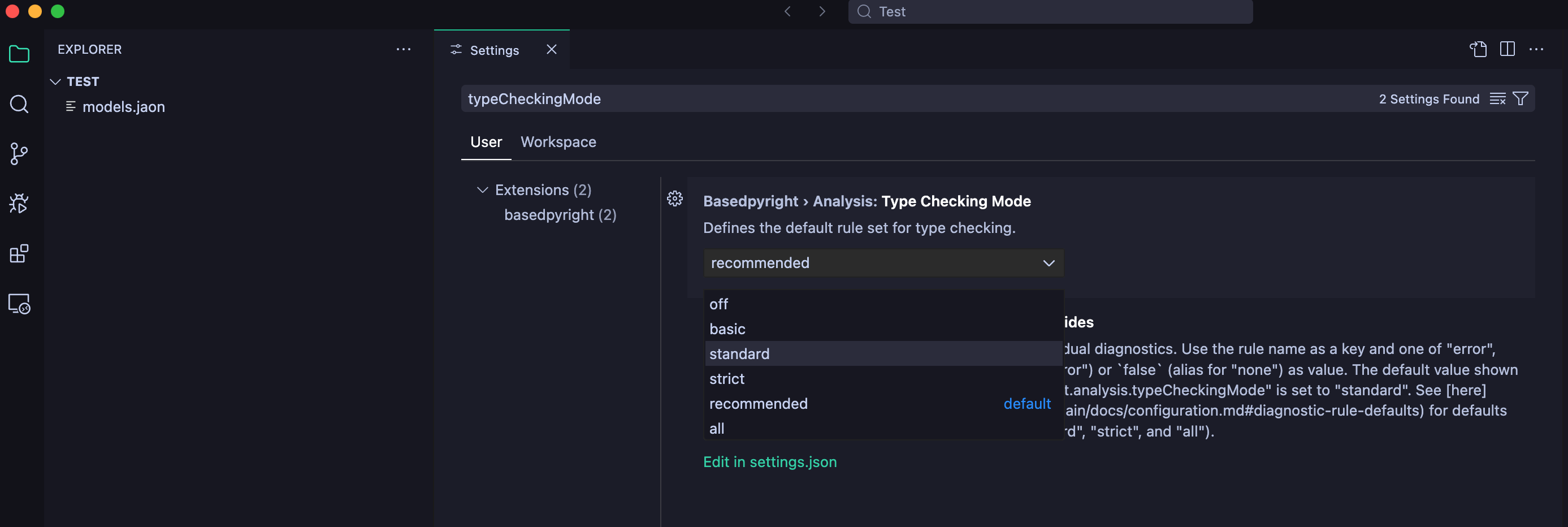
BasedPyrightBasedPyrighthas stricter checks by default. If you find them excessive, you can change tostandardin this setting:
basedpyright.analysis.typeCheckingMode
Q: C/C++ Cannot Jump/Highlight
- Microsoft's official
C/C++plugin has limitations on CodeBuddy IDE. CodeBuddy IDE recommends installingclangdas theLSP(syntax highlighting and jump) forC/C++. It's recommended to install theclangdplugin for code navigation and highlighting.
Note: You also need to uninstall the
C/C++plugin, otherwise there will be conflicts.
If there are still individual issues, check whether the compile_commands.json file exists in the project root directory. Use the following command to generate it:
cmake -B build -DCMAKE_EXPORT_COMPILE_COMMANDS=ON
Terminal
Q: Unable to Open Terminal
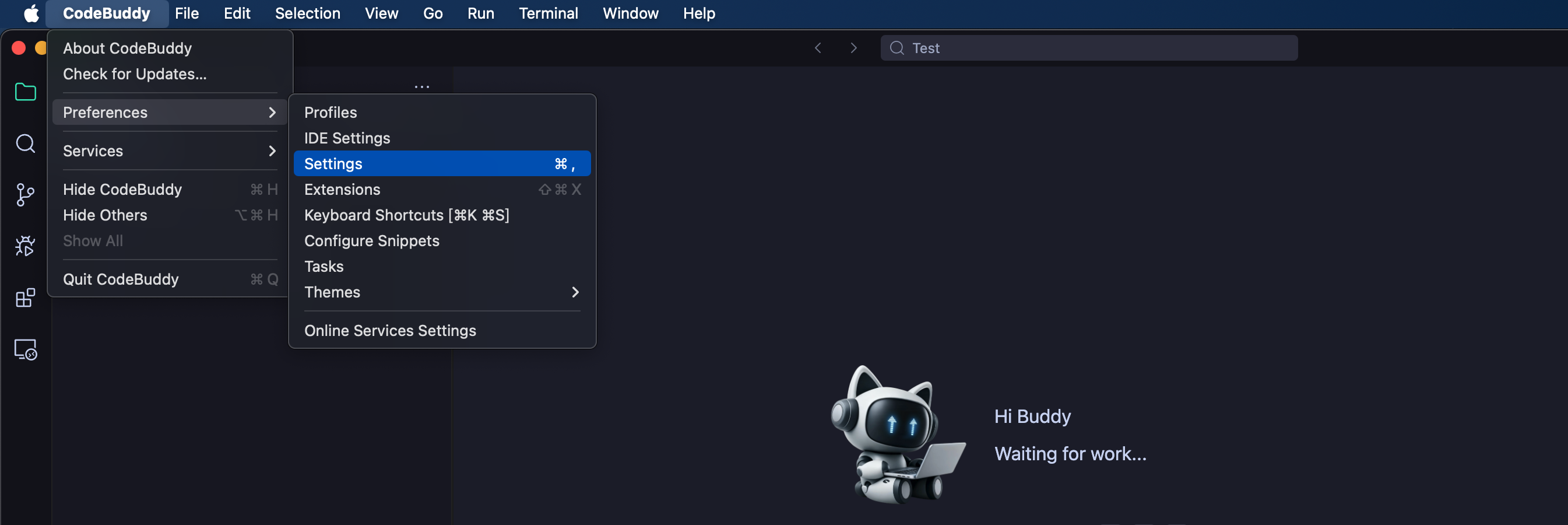
Follow these steps: Click CodeBuddy IDE at the top, view Preferences, and select Settings.
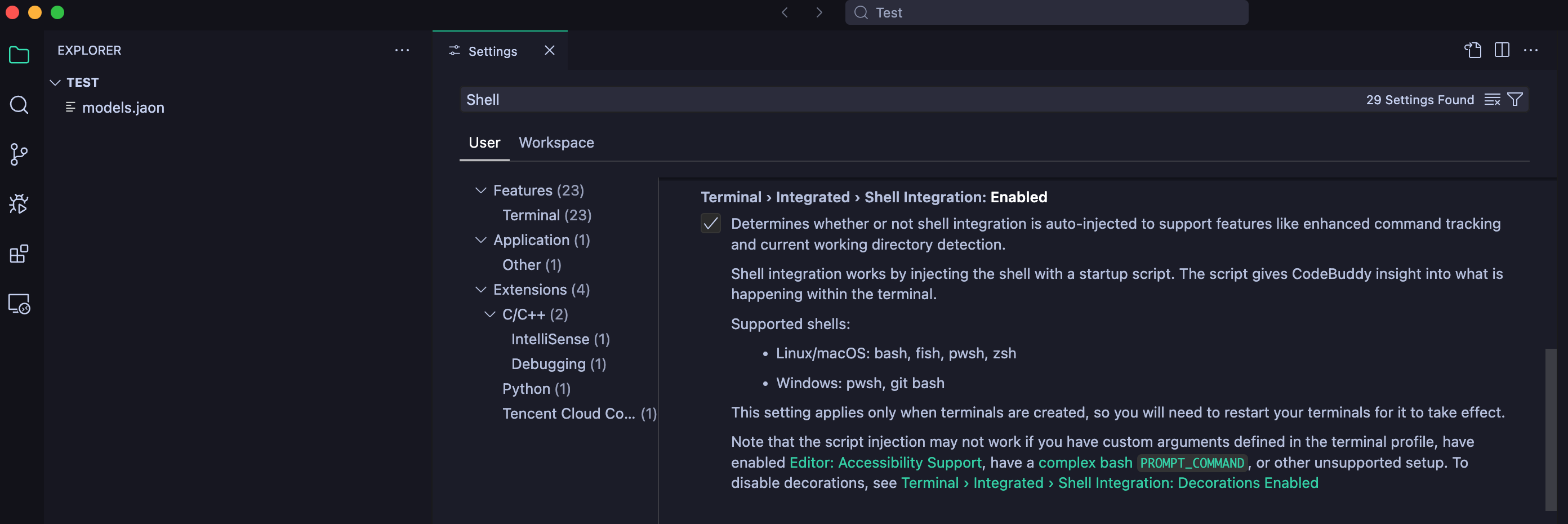
In Settings, search for Shell, and set Terminal › Integrated › Shell Integration: Decorations to Enabled.
Q: Terminal Cannot Be Reused
MAC
zsh with slow components or themes installed may cause Terminal status retrieval to fail.
- For users who don't need
zsh, consider switching to thebashtheme.
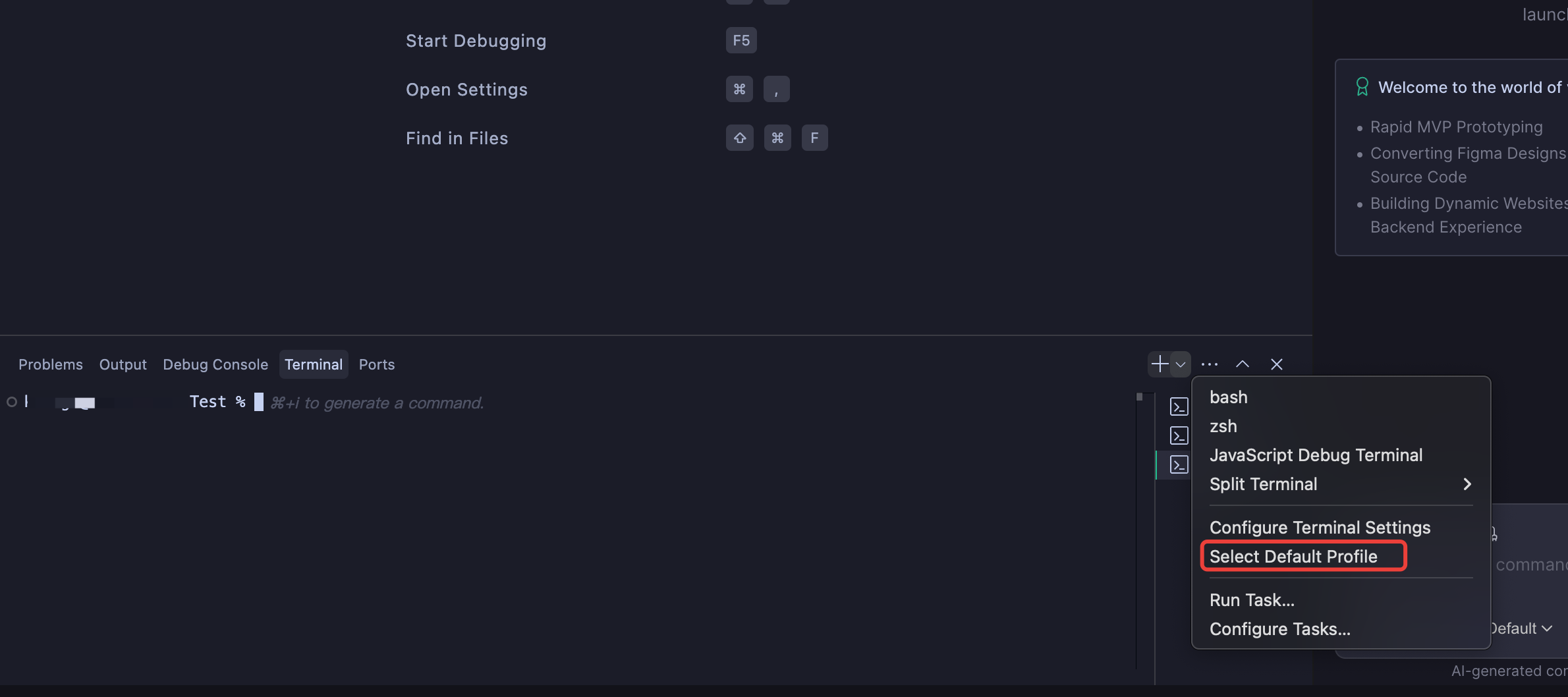
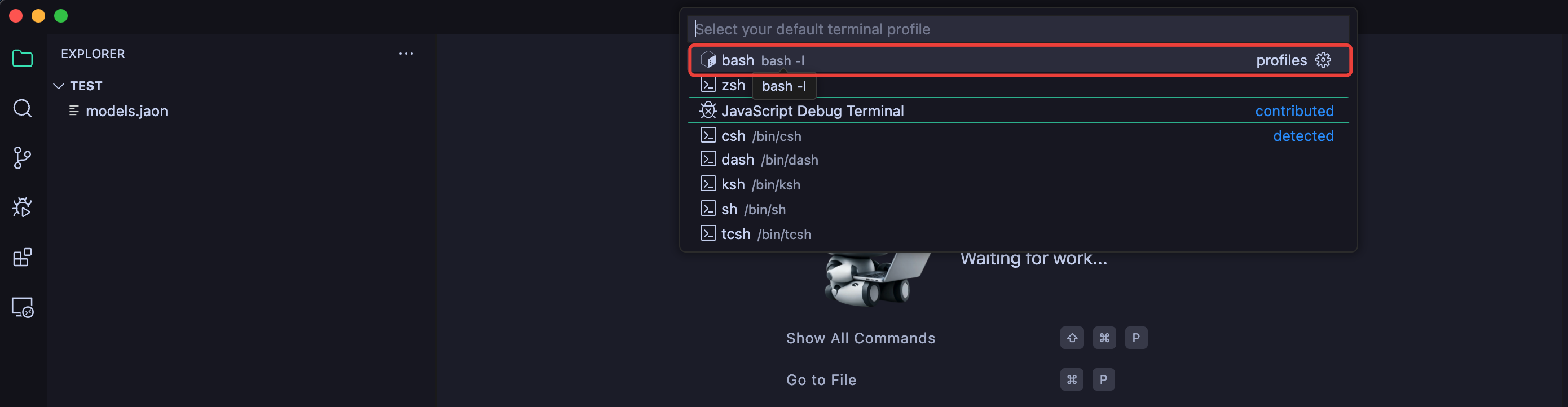
- For users who need
zsh, check if~/.zshrchas similar theme configurations.

MCP
Q: MCP Usage
MCP must be used in Craft mode. Ask mode cannot modify files, so MCP is disabled because MCP may modify files.
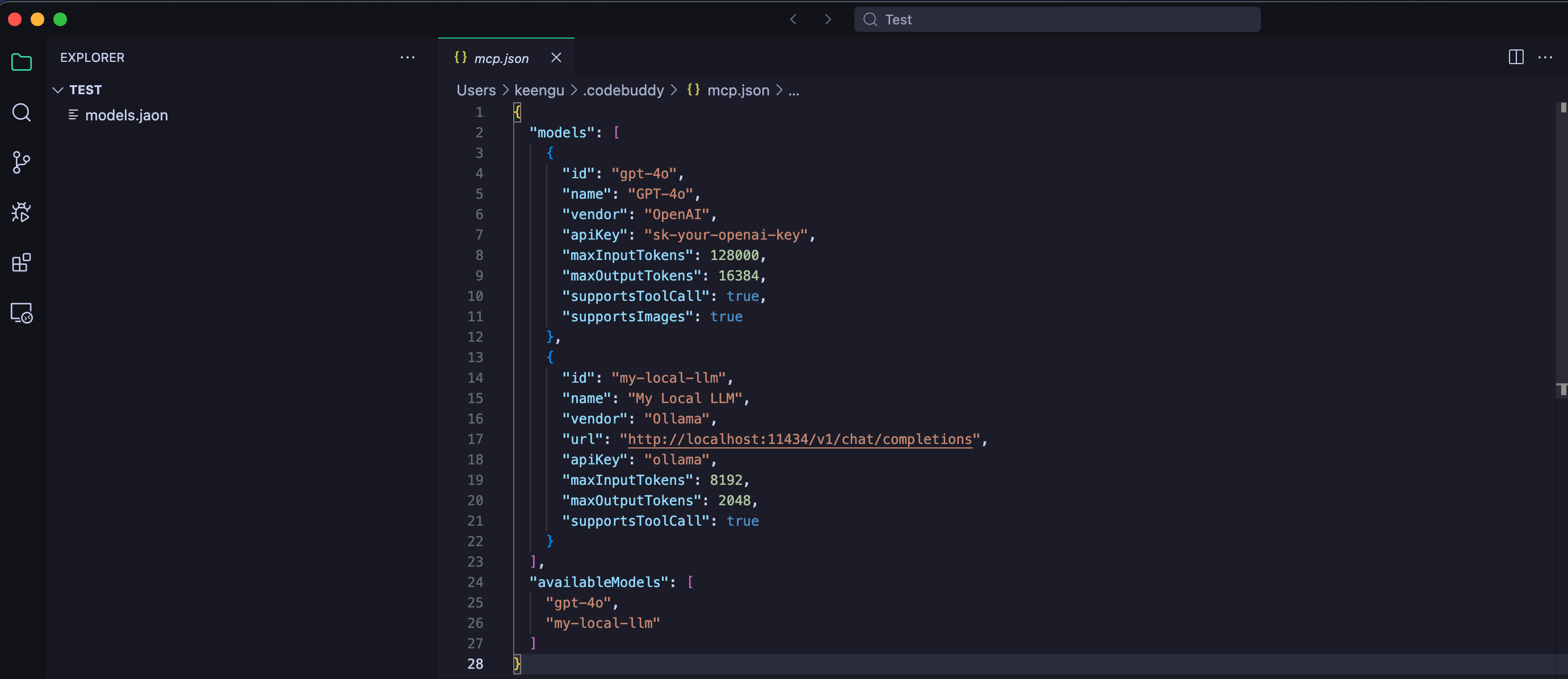
Q: MCP Connection Failed
Remove spaces in names within the configuration file.
Language
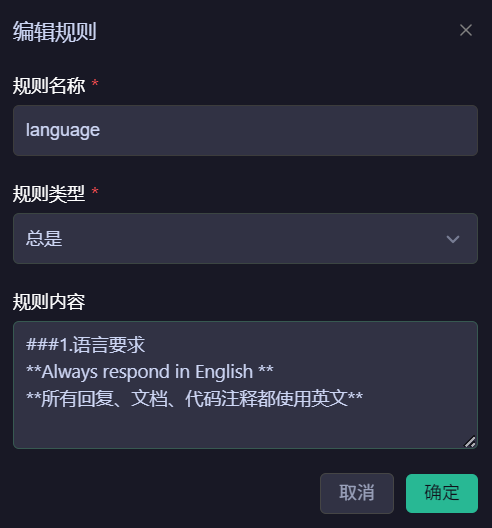
Q: How do I constrain the Agent's conversation language?
Switch the language by configuring Rules, as illustrated below:
Files & Workspace
Q: Update prompt says "User project directory detected in the application installation directory"
- Common cause:
CodeBuddyupgrades use a full overwrite approach — the old contents in the installation directory are removed and replaced with new version files. If you have personal files (documents, projects, screenshots, etc.) in the directory, they will be deleted during the overwrite and cannot be recovered. - Suggested solution:
- Open the installation directory: right-click on the CodeBuddy CN icon and select Open File Location.
Tip
Common installation directory paths:
- Windows: C:\Users{username}\AppData\Local\Programs\CodeBuddy
- macOS: /Applications/CodeBuddy.app
The installation directory typically contains the following folders: bin, locales, resources, tools, _.
Remove the folders generated by conversations, keeping only the system folders named
bin,locales,resources, andtools. Check whether there are any personal files, and if so, move them away as well to prevent them from being overwritten by the installer.Reopen the IDE, click Help -> Check for Updates in the top menu bar, and wait for the update package to finish downloading.
Q: What should I do if the historical conversations in the Claw workspace are missing?
- Common cause: In the Claw workspace, only tasks with recent conversations are displayed in
Claw; other tasks are only shown in the workspace list. - Suggested solution:
Clawis designed for remote control. When creating new tasks on the desktop, it is not recommended to use Claw as the workspace.