

Conversation
Conversation Methods
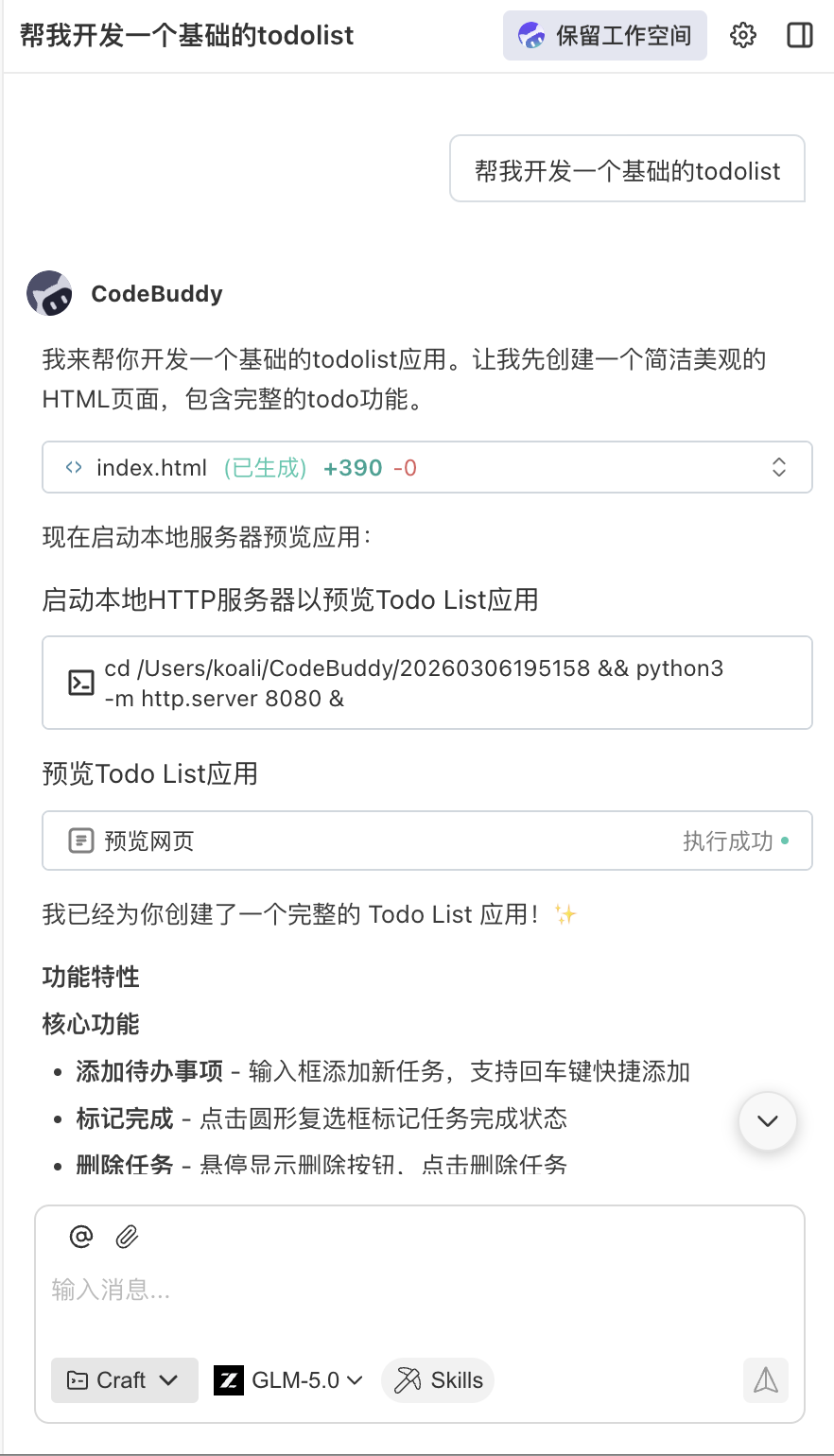
After creating a task, you'll continuously interact with the agent in the central area. The usage here is basically consistent with the interaction habits in the IDE sidebar - centered around "entering requirements, adding context, viewing execution process, and continuing to ask questions."
Common operations include:
- Enter requirements or additional explanations directly in the input field.
- Click the send button or press Enter to send messages.
- Continue asking questions in existing tasks, letting the agent continue processing with previous context.
- View replies, results, and intermediate steps during task execution.
Top Bar Actions
Besides displaying the current task title, the top of the conversation area provides some commonly used actions for quick switching and maintaining context during task processing.
- Open Editor: Quickly open the editor or project content associated with the current task, allowing you to view the conversation while returning to code or files for continued processing.
- Keep Workspace: When continuously asking questions or making repeated modifications in the same project, you can keep the current workspace to reduce repeated switching and reselection.
Sending Messages and Follow-up Questions
In the input field at the bottom of the conversation area, you can send new messages at any time.
Content suitable for direct sending includes:
- New requirements: e.g., adding a feature or supplementary explanation.
- Modification suggestions: e.g., adjusting implementation approach, adding constraints.
- Follow-up questions: e.g., asking the agent to continue optimizing based on current results.
If you're already accustomed to the input, send, and follow-up workflow in the IDE sidebar, the experience here is basically the same - no relearning required.
File and Image Upload
Besides direct text input, you can also add files or images as context:
- Paste Screenshots: Use
Ctrl/Cmd + Vto paste images directly from clipboard. - Upload Files: Click the upload button, or drag files directly into the input field area.
- Add Local Content: Combine files, images, and text descriptions to help the agent understand the problem faster.
Execution Process Display
When the agent is executing a task, it displays key steps and results in the conversation area so you can track progress at any time.
You'll typically see:
- Agent's reply content
- Stage descriptions during execution
- Generated result summaries
- Expandable intermediate steps
The benefit is that you don't need to leave the current task - you can continuously view input, process, and output in the same place.
Interruption and Continuation
If a task is executing, the input field area will show a stop button, allowing you to interrupt the current execution at any time.
After interruption, you can still:
- Continue adding new explanations
- Adjust requirements and resend
- Continue progressing the task based on existing content
This is consistent with the common sidebar-style interaction in the IDE - the focus is on maintaining continuous conversation rather than starting over each time.