
Results
Right Results Panel
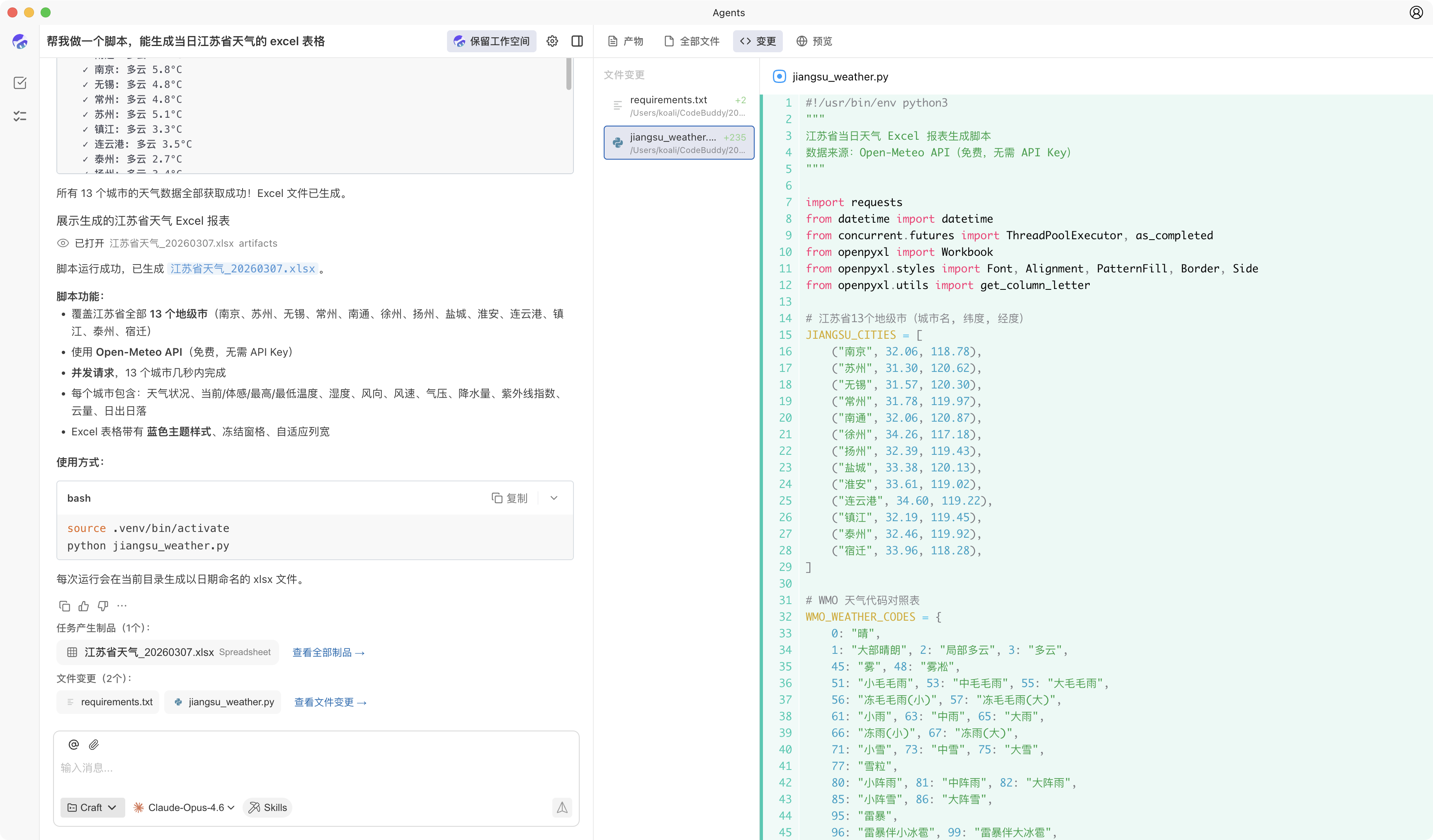
During task execution, the right side displays a results panel for viewing files, code changes, and preview content produced by the agent. You don't need to leave the current task - you can view the conversation and results side by side.
The current results panel mainly provides four types of content:
- Artifacts: View files and deliverables generated by the task
- All Files: View file contents in the current workspace
- Changes: View code modifications made by this task
- Preview: View web pages or directly openable result pages
All this content is concentrated in the same area for easy switching and comparison.
Artifacts
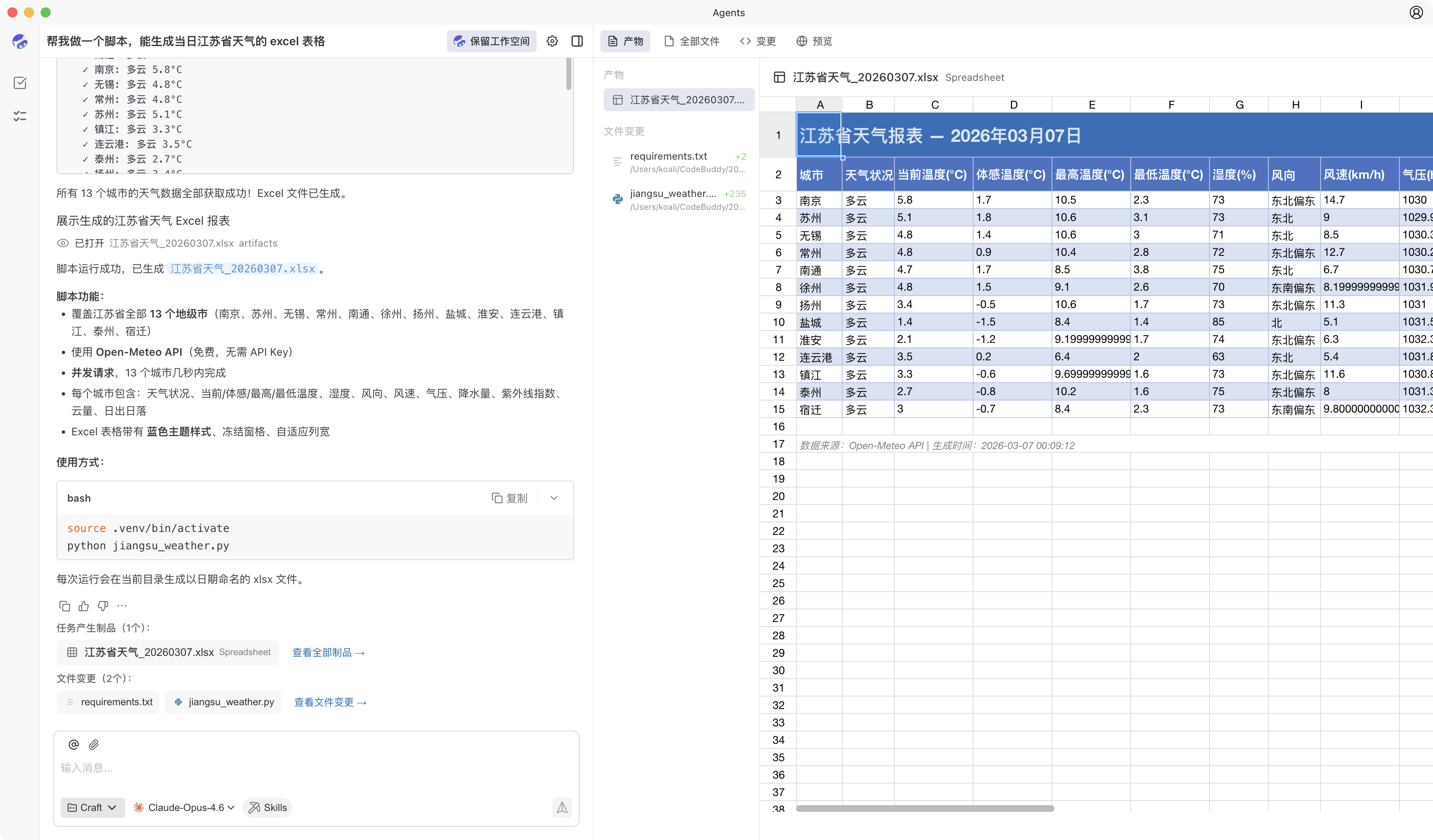
When a task generates files, spreadsheets, documents, or other deliverable content, you can view them in Artifacts.
The artifacts area typically contains two parts:
- Left side: list of artifacts generated by the current task
- Right side: preview area for the selected artifact
Content suitable for viewing here includes:
- Document results
- Spreadsheet results
- Auto-generated deliverable files
Spreadsheet Preview
If the task generates a spreadsheet file, you can open and view it directly in the results panel without downloading and opening with external tools first.
This is more suitable for quickly confirming:
- Whether headers are correct
- Whether data is complete
- Whether layout and format meet expectations
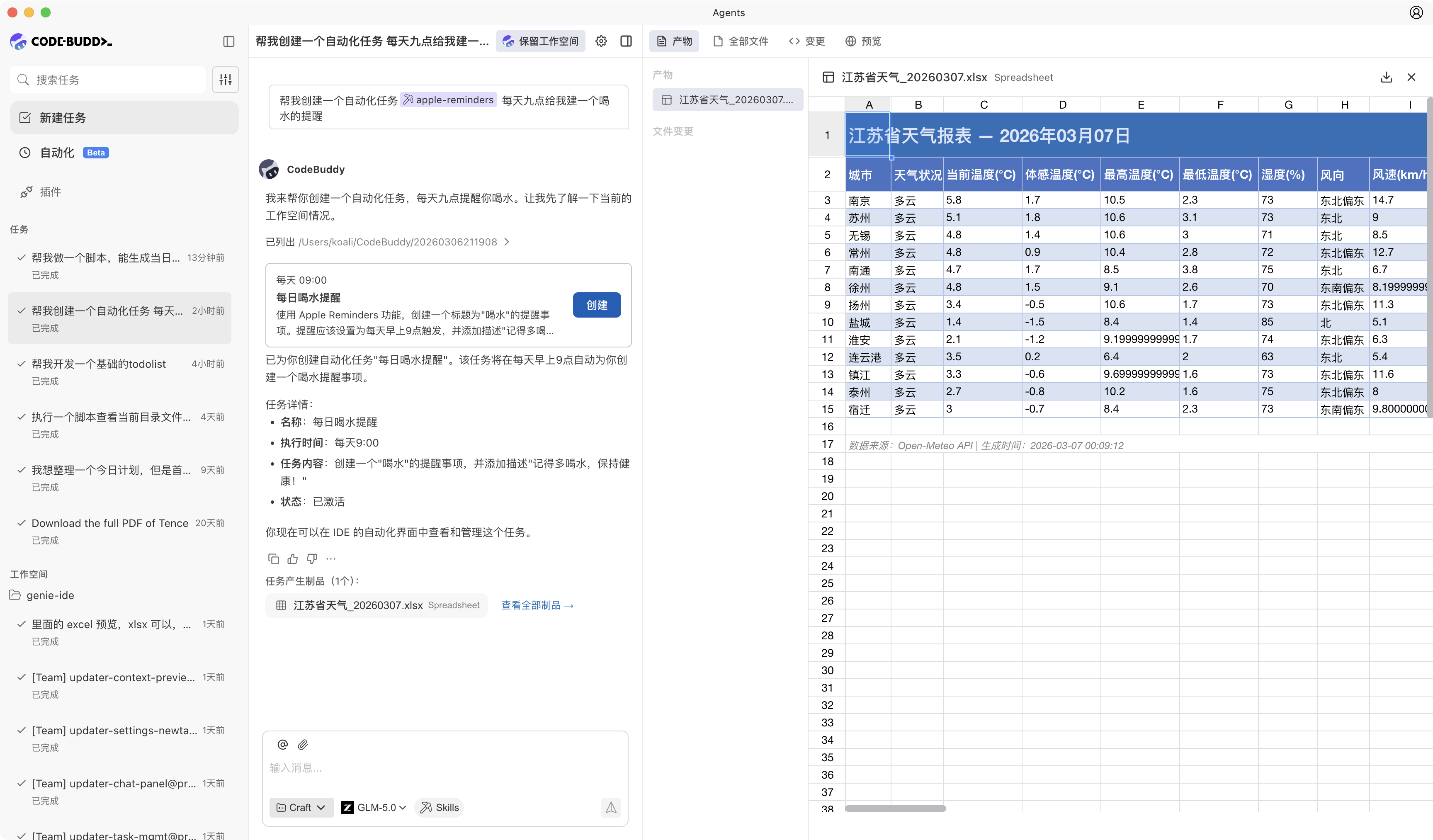
Document Preview
If the task generates a document file, you can also view the content directly in the results panel. This allows you to quickly check whether the layout, headings, and body content meet expectations before delivery.
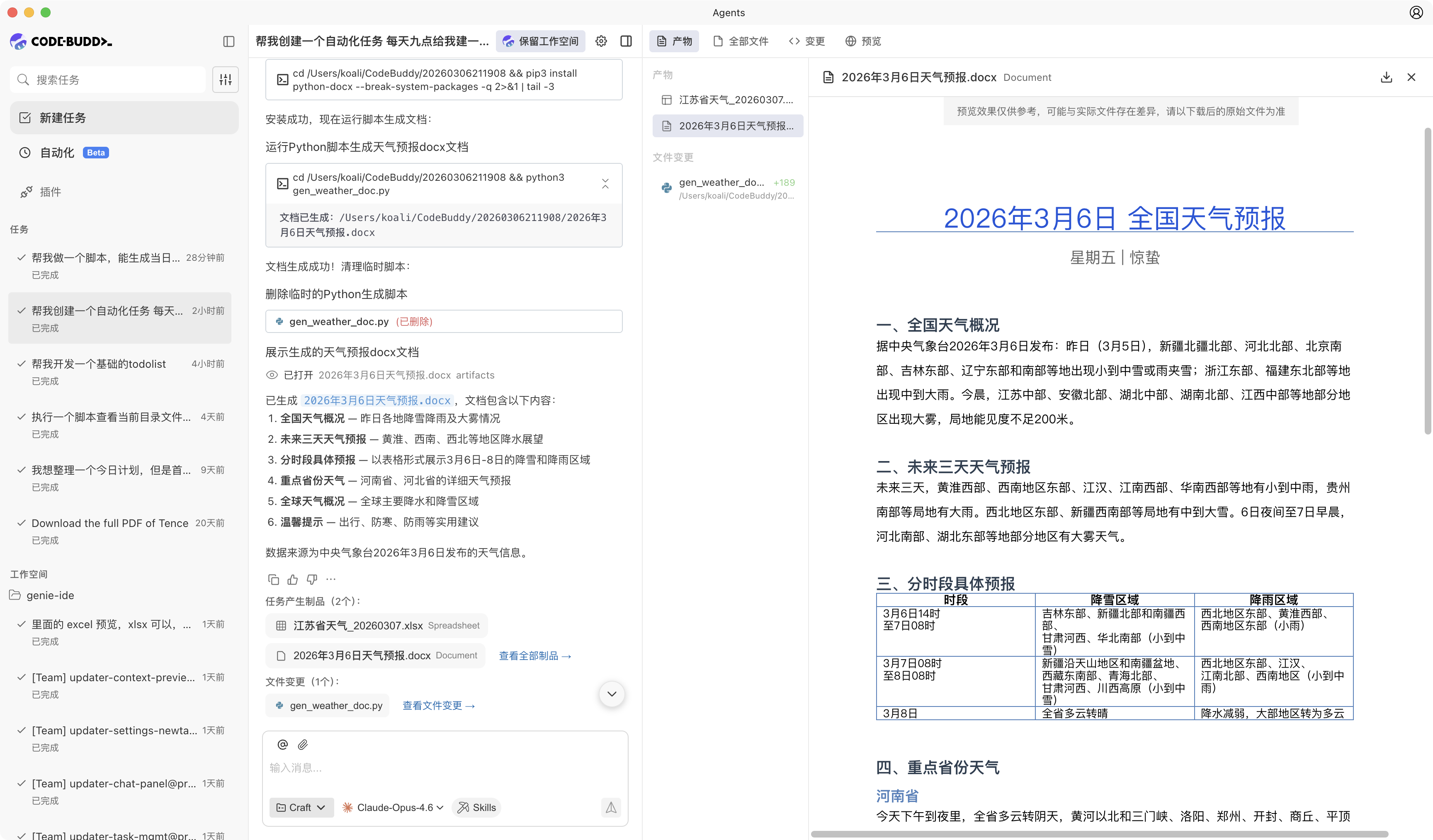
Web Preview
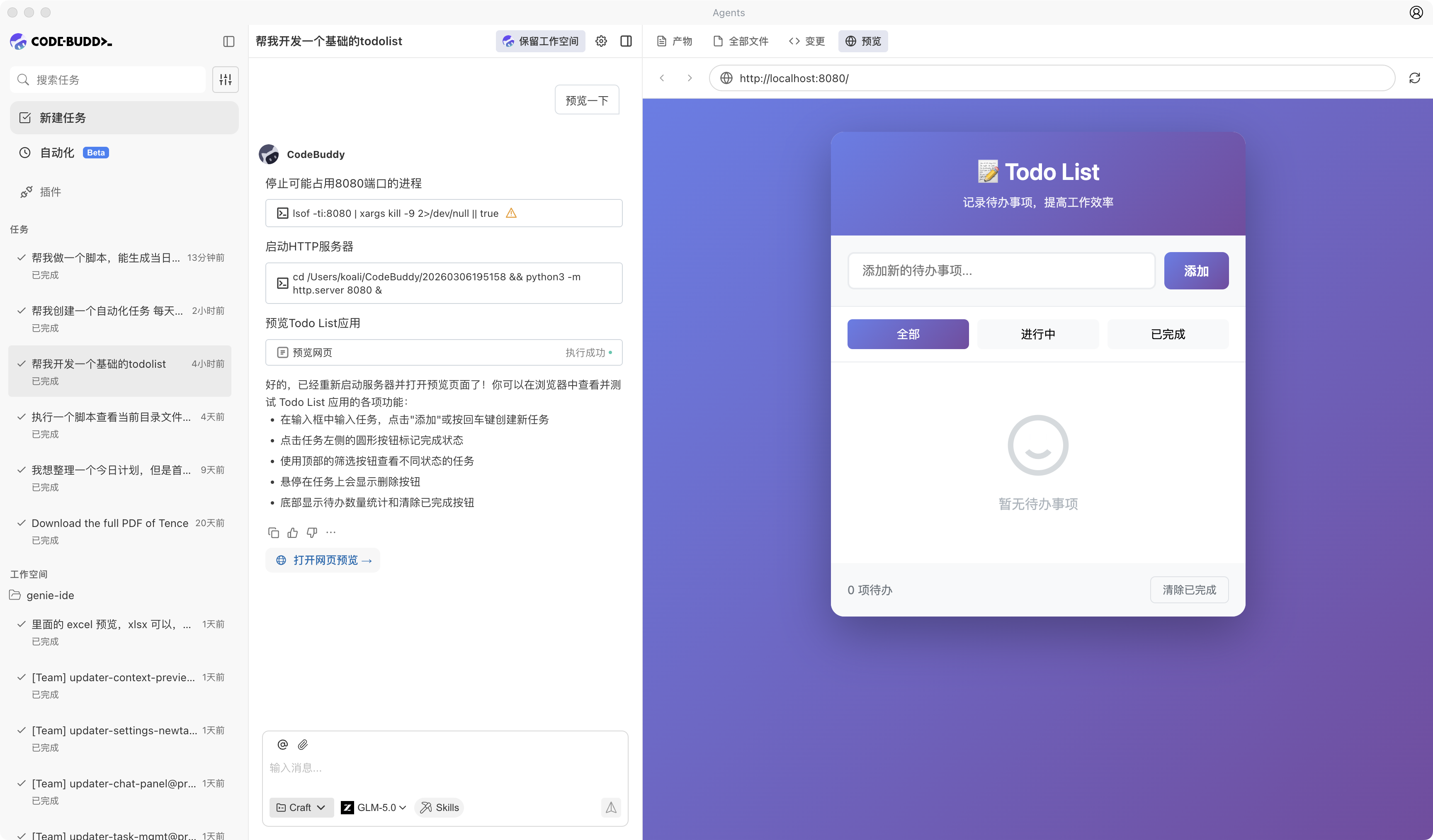
If the task generates a web page, page prototype, or locally running web application, you can view the effect directly in Preview.
The preview area typically provides:
- Current page URL
- Refresh button
- Real-time view of page content
This is suitable for confirming whether page structure, styling, and interaction results meet expectations.
All Files
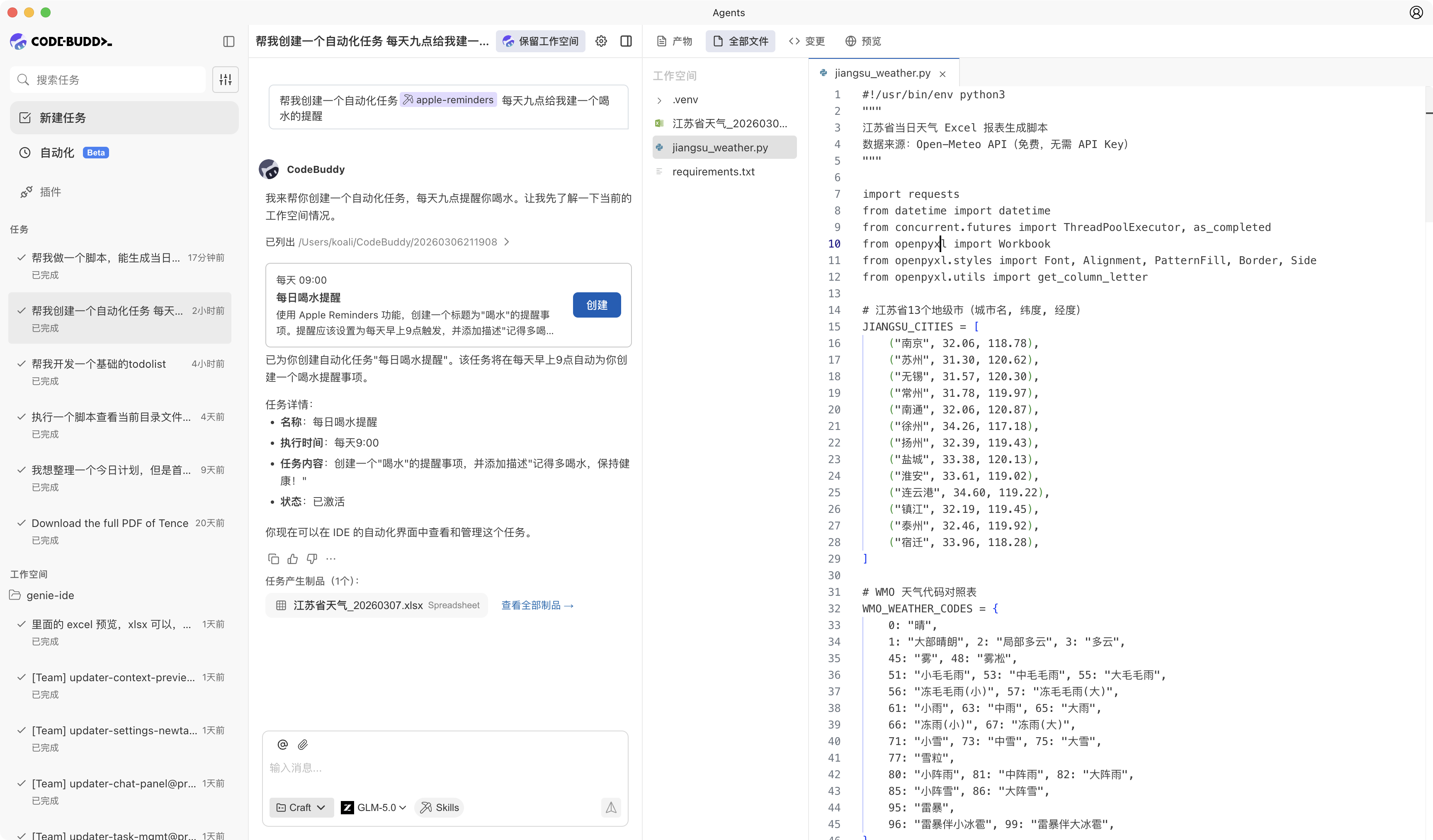
All Files is used to view file contents in the current workspace, suitable for directly browsing code or output files without leaving the task.
This view typically contains:
- File list or file tree on the left
- File content area on the right
- Tab bar for open files at the top
Suitable for:
- Quickly viewing the complete content of a generated file
- Comparing relationships between different files
- Checking whether the task wrote to the correct location
Changes
The Changes view is used to view code modifications made by the current task, allowing you to do a review before accepting results.
This view typically shows:
- List of files modified in this task
- Change status for each file
- Specific change content when a file is selected
If the task involves code development, script generation, or configuration adjustments, it's recommended to first confirm whether the changes meet expectations here.