

Task Management
Task List
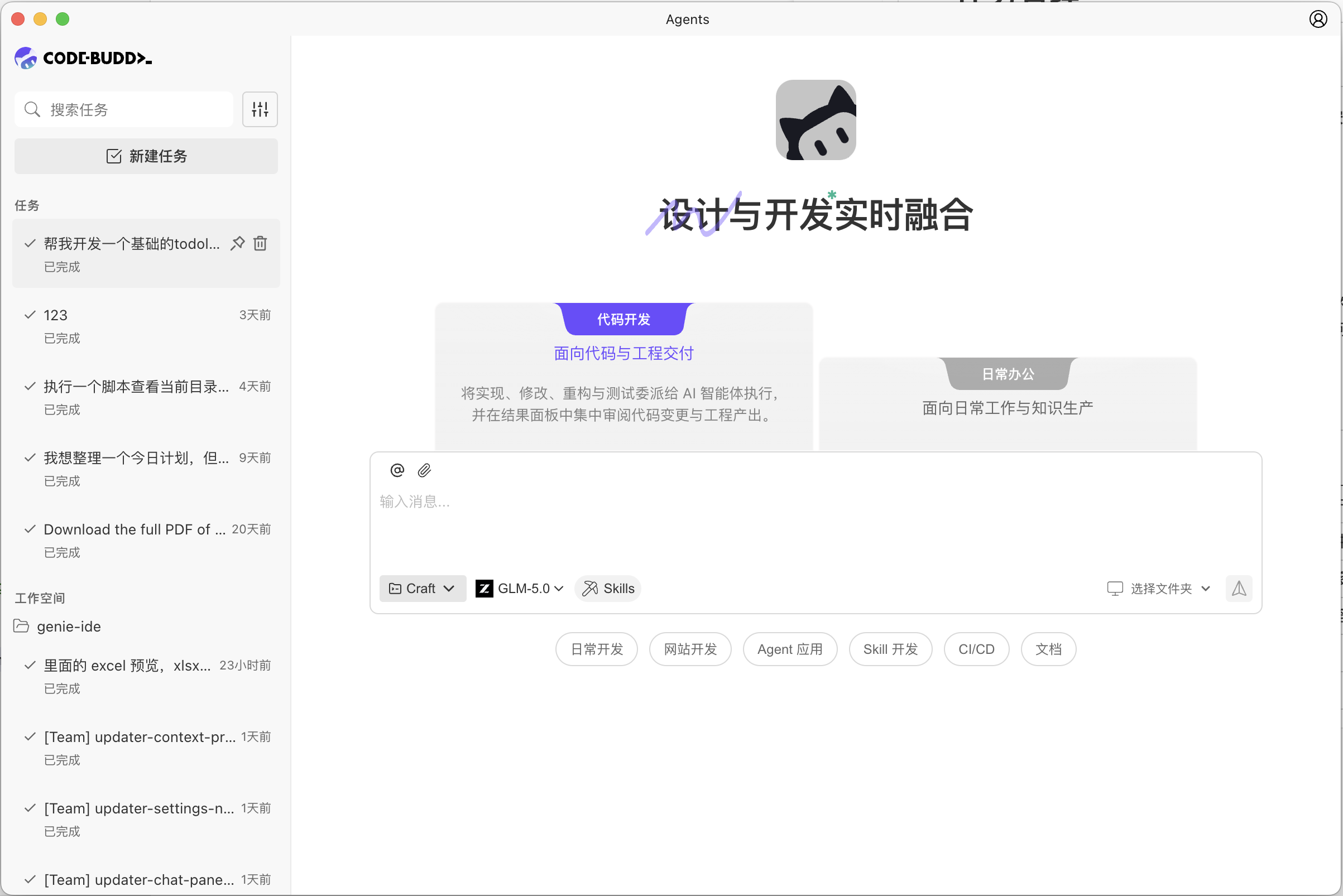
The left sidebar displays tasks you've created, allowing you to review, continue processing, and switch context at any time.
The current list typically contains two types of information:
- Recent Tasks: Shows recently accessed or updated tasks.
- Tasks Organized by Workspace: Allows you to view historical tasks within the same project.
Each task card typically displays:
- Task title
- Current status
- Last updated or created time
Search and Filter
At the top of the task list, you can use search and filter functions to quickly locate tasks:
- Search Box: Quickly find tasks by title.
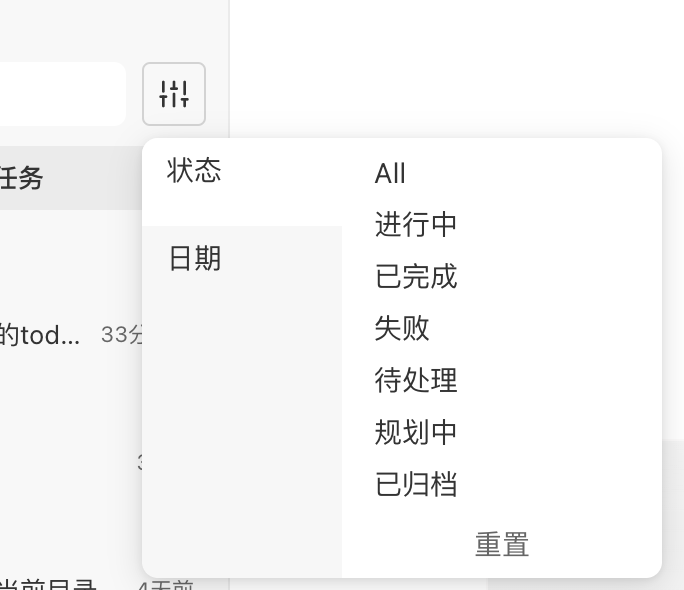
- Filter Button: Opens the filter panel to filter tasks by status or date.
Common filtering methods include:
- Filter by status: e.g., In Progress, Completed, Failed, etc.
- Filter by date: Narrow down to tasks within a specific time range.
- Reset filters: Clear current filter conditions to view all tasks.
Task Status
Tasks transition between different states during execution. Common statuses in the current interface include:
| Status | Description |
|---|---|
| In Progress | Agent is executing the task |
| Completed | Task has finished executing |
| Failed | An issue occurred during execution, task did not complete |
| Pending | Task is waiting for further processing or input |
| Planning | Agent is analyzing requirements and organizing execution approach |
| Archived | Task has been archived for future reference |
Common Management Operations
In the task list, you can perform the following operations:
- Click a task card to enter that task's conversation and results page.
- Use search or filters to quickly find specific tasks.
- Continue sending messages on existing tasks, allowing the agent to continue processing with previous context.
- Clean up tasks that are no longer needed.
Continuing Existing Tasks
For tasks that are completed, failed, or temporarily interrupted, you can re-enter and continue adding messages. This allows you to continue progressing with existing context rather than starting from scratch.
Scenarios suitable for continuing include:
- The first result wasn't complete enough, and you want to refine further.
- After a task failure, you need to add information and try again.
- You want to extend new requirements based on previous results.