
WeChat Work AI Bot Integration Guide
Through the /remote-control command, you can quickly integrate CodeBuddy Code with WeChat Work AI Bot, enabling remote message-driven functionality. Using WebSocket long polling active connection mode, no public IP is required, making configuration the simplest option.
Prerequisites
- Registered WeChat Work account
- CodeBuddy Code installed:
codebuddy --version - Completed login authentication: After running
codebuddy, execute/login
1. Create a WeChat Work AI Bot
1.1 Open the Creation Page
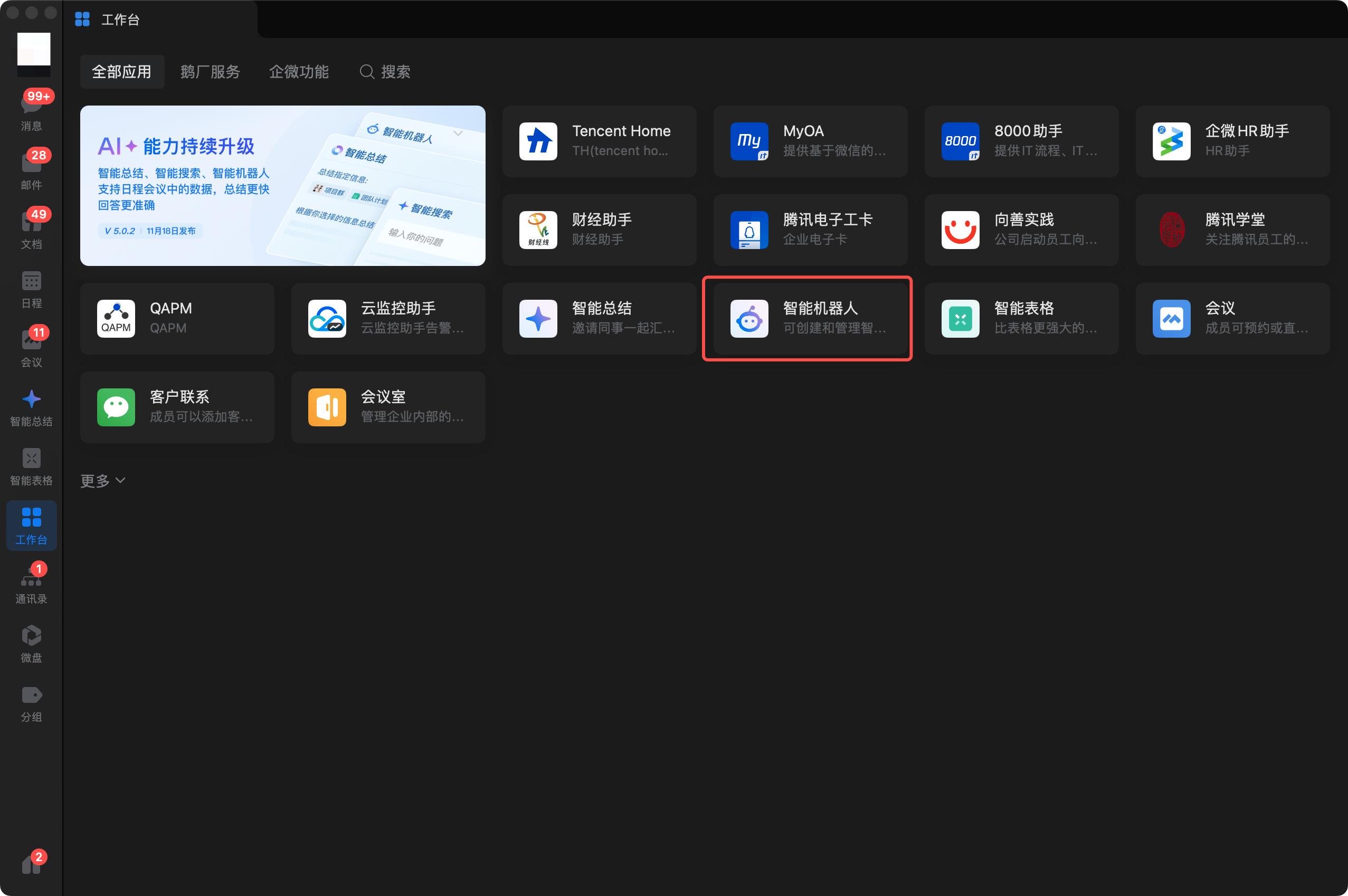
- Open the WeChat Work client and go to "Workbench"
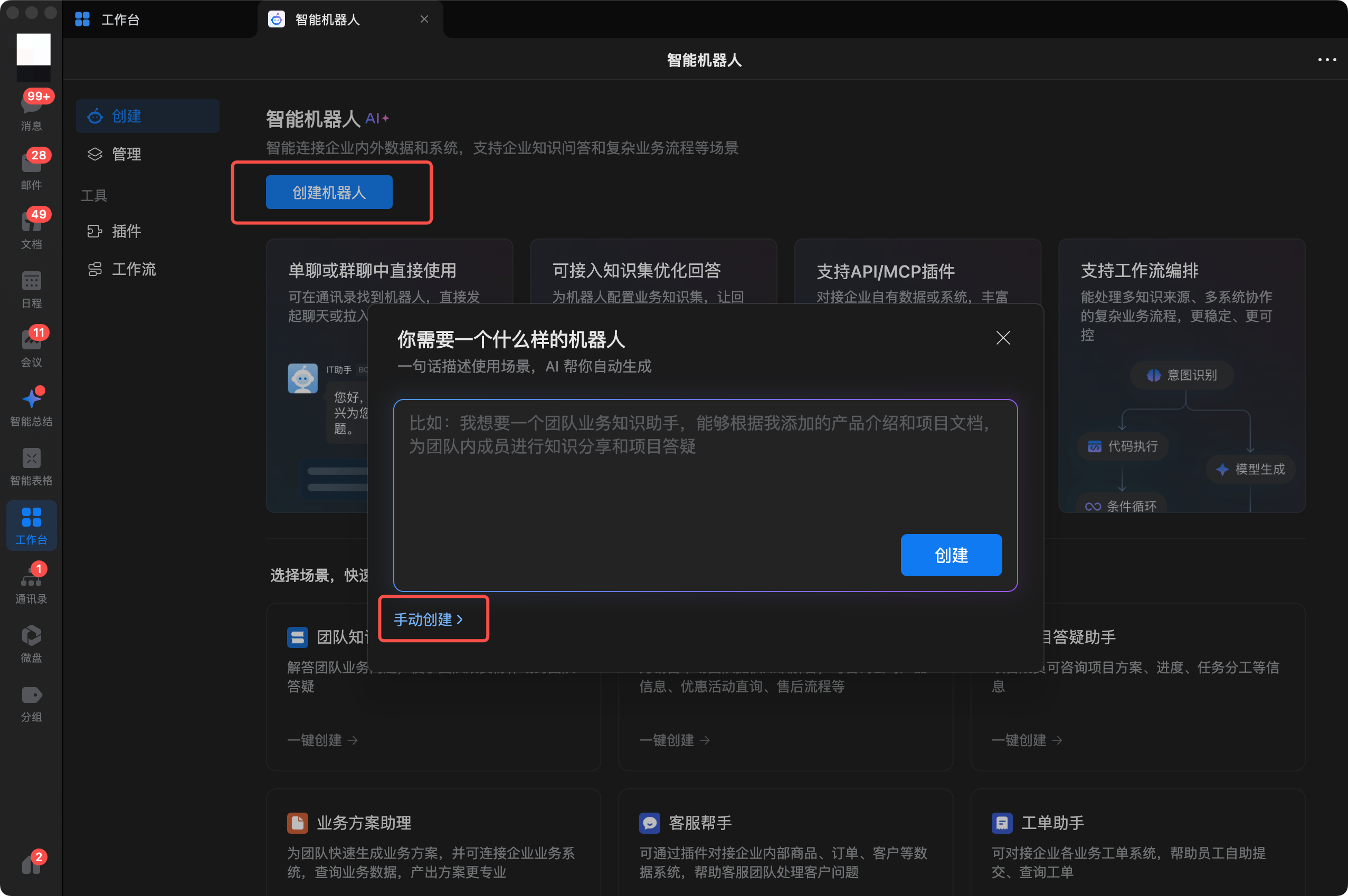
- Click "AI Bot" → Click "Create" → Select "Manual Creation"
If you cannot find the "AI Bot" entry in the Workbench, please update WeChat Work to the latest version.
1.2 Fill in Basic Information
Enter basic information such as the Bot name, avatar, and app description.
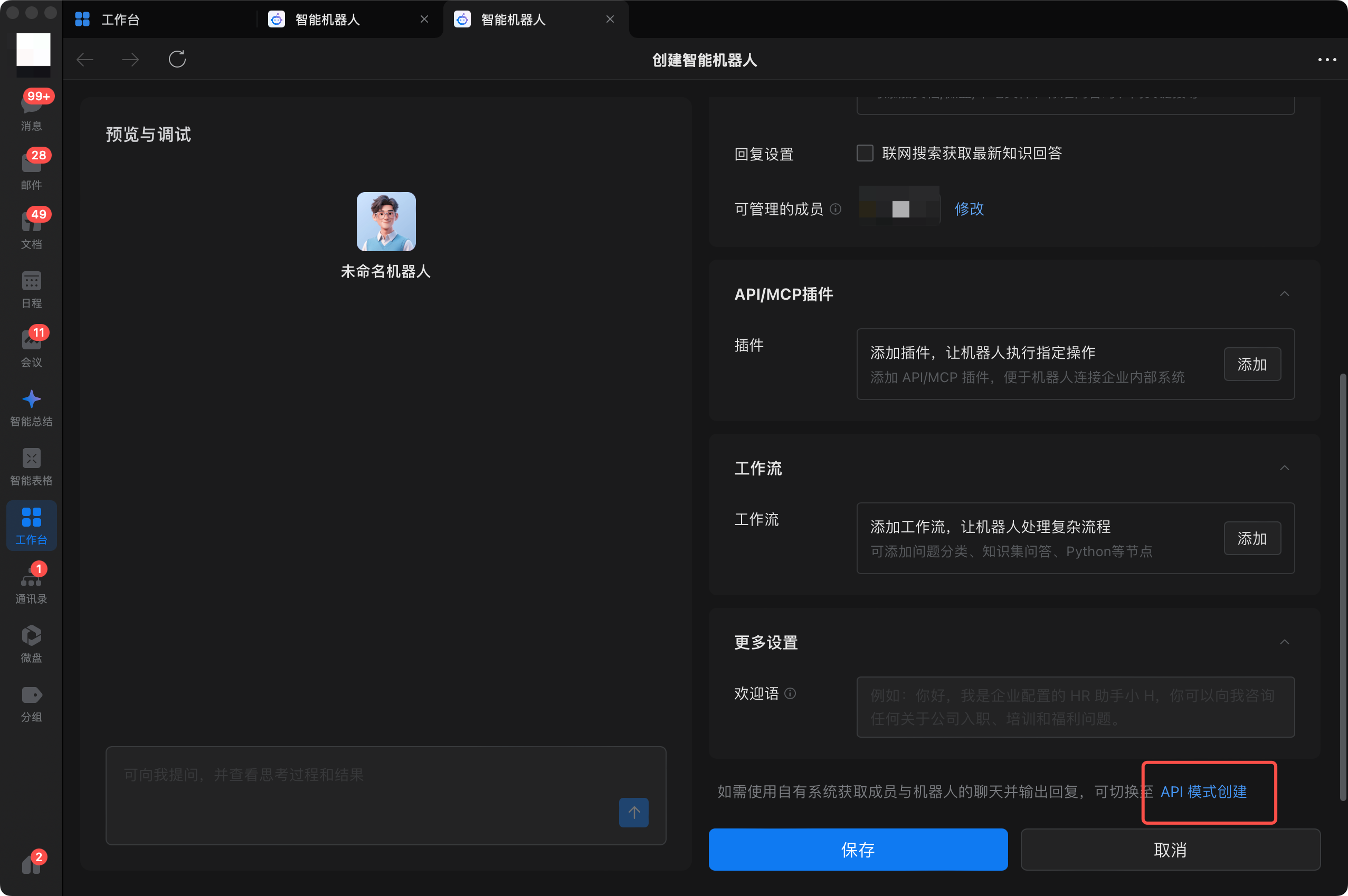
1.3 Switch to API Mode
Click "API Mode Creation" at the bottom of the page.
1.4 Select Long Polling Mode
On the API mode creation page, find the "API Configuration" area and select "Use Long Polling" for the connection mode.
1.5 Get Bot ID and Secret
Find the following information in the "API Configuration" area and keep it safe:
- Bot ID: The unique identifier for the Bot (example:
aibVGv7I...) - Secret: Click "Get" or "Click to Get" to obtain the access key
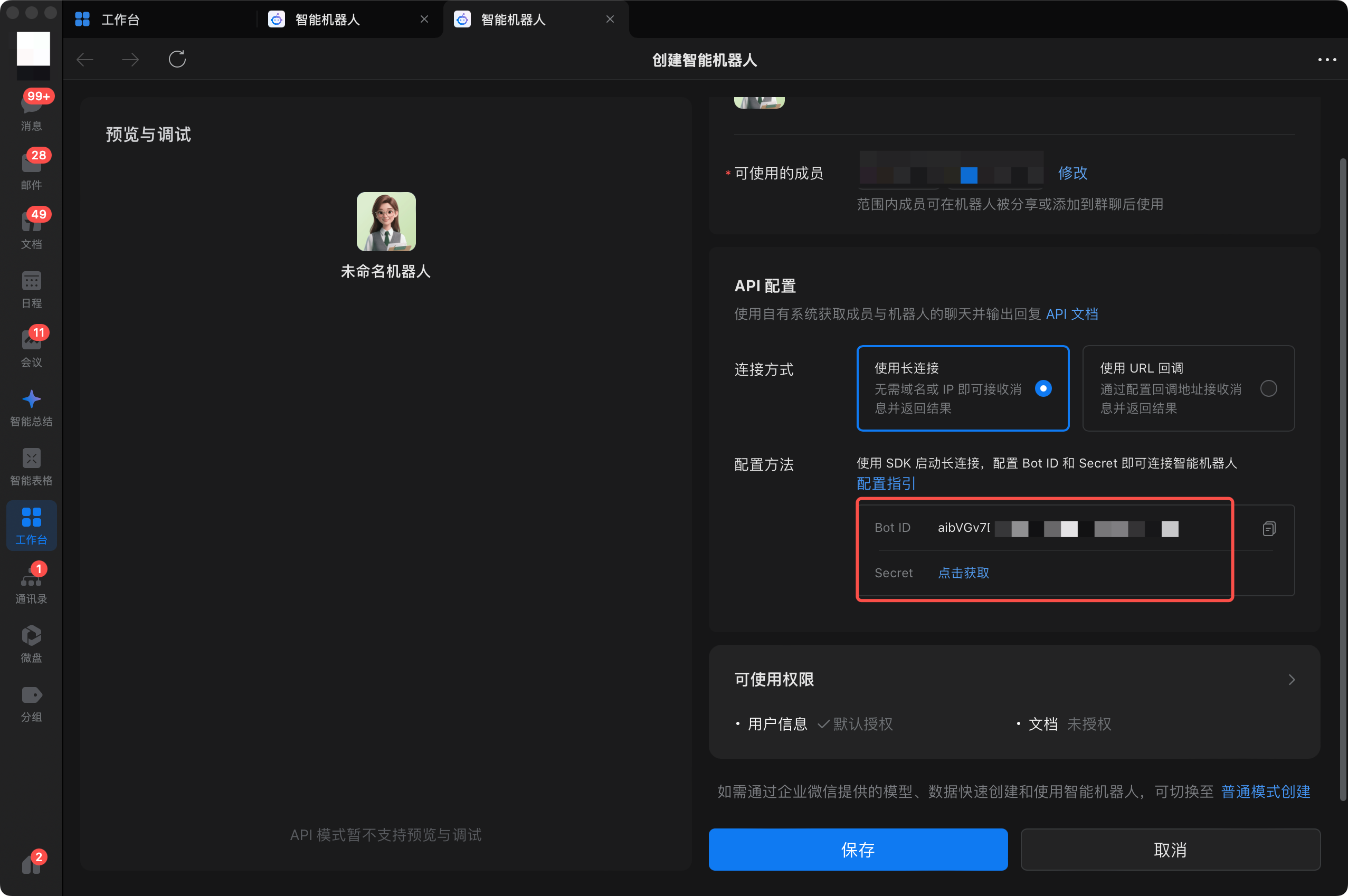
⚠️ Important: The Secret is displayed only once. If lost, you can regenerate it on the Bot details page.
1.6 Save the Bot
After confirming that the Bot ID and Secret have been recorded, click "Save" to complete creation.
2. Configure Environment Variables
Before starting CodeBuddy CLI, set the following environment variables:
bash
export CODEBUDDY_WECOM_BOT_ID="<your Bot ID>"
export CODEBUDDY_WECOM_BOT_SECRET="<your Bot Secret>"
Optional Configuration
| Environment Variable | Description | Default Value |
|---|---|---|
CODEBUDDY_WECOM_BOT_ID | AI Bot ID (required) | — |
CODEBUDDY_WECOM_BOT_SECRET | AI Bot Secret (required) | — |
CODEBUDDY_WECOM_BOT_WS_URL | WebSocket server address (used for private deployment) | wss://openws.work.weixin.qq.com |
Persistent Configuration (Optional)
Add environment variables to your shell startup file for automatic loading on each startup:
bash
# ~/.zshrc or ~/.bashrc
export CODEBUDDY_WECOM_BOT_ID="<your Bot ID>"
export CODEBUDDY_WECOM_BOT_SECRET="<your Bot Secret>"
3. Start CodeBuddy and Connect
3.1 Start Interactive Mode
bash
codebuddy3.2 Open Remote Control Panel
/remote-controlThis command opens an interactive panel listing all available connection clients.
3.3 Connect to wecom-bot
Use arrow keys to select the wecom-bot entry and press Enter to initiate connection:
Remote Control Clients

  1. • wecom-bot  [disconnected]  (Press Enter to connect)
  2. • centrifugo [disconnected]
  3. Cancel
The panel will automatically close after successful connection. If environment variables are not configured, the panel will stay and display error messages.
3.4 Check Connection Status
Run /remote-control again to check the connection status:
  1. • wecom-bot  [connected]  (Press Enter to disconnect)
  2. Cancel
Status descriptions:
disconnected— Not connected, can initiate connectionconnecting— Connecting, please waitconnected— Connected, can disconnect
4. Panel Operation Instructions
| Operation | Description |
|---|---|
↑ / ↓ | Select client entry |
j / k | Vim-style navigation (equivalent to up/down arrow keys) |
Enter | Connect (in disconnected state) or disconnect (in connected/connecting state) |
Esc | Exit panel (not responsive during operations in progress) |
5. Verify Integration
After establishing the connection, you can verify that the Bot is working properly through the following methods.
Method 1: Direct Conversation
- Open the WeChat Work client (desktop or mobile)
- Find the Bot you created in the message list
- Send a test message (such as "Hello") and confirm the Bot replies
Method 2: Group Chat
- Add the Bot to a group chat
- Send a message via @Bot name in the group
- The Bot will respond to @mentioned messages
6. Message Processing Flow and Status Indicators
Complete Message Processing Flow
The processing flow after a user sends a message to the Bot:
User sends message on WeChat Work
        ↓ WebSocket long polling real-time message push
CodeBuddy CLI receives message
        ↓ Reply within 5 seconds (meets WeChat Work callback timeout requirement)
Send streaming message (stream finish=false): "Processing, please wait..."
        ↓ WeChat Work client displays streaming message
Agent processing... (processing time may be 1 second to 5+ minutes)
        ↓
Processing complete, send streaming message (stream finish=true): Final result
        ↓ WeChat Work client replaces "Processing..." with final result
WeChat Work user sees final reply (only the final result is kept in chat history)
Streaming Status Indicator Mechanism
Utilizing the full replacement feature of WeChat Work streaming messages (aibot_respond_msg stream type):
- Immediate Reply: After receiving a user message, immediately send a streaming message with
finish=false, content: "Processing, please wait..." - In-place Replacement: After the Agent finishes processing, send
finish=true+ final result using the samestream.id - When the WeChat Work client receives
finish=true, it replaces the previously displayed "Processing, please wait..." with the full content
Reference: AI Bot Long Polling Documentation —— stream.content is full content, each send replaces the previous display.
User Experience
| Stage | Chat Window Display | Description |
|---|---|---|
| After message sent | "Processing, please wait..." | Streaming message placeholder, indicating Bot is processing |
| After processing complete | Final reply content | "Processing..." replaced in-place by final result |
Difference from Previous Solution
| Aspect | Old Solution (Text Message ack) | New Solution (Streaming Message Replacement) |
|---|---|---|
| "Processing, please wait..." | Permanently kept in chat history | Replaced in-place by final result |
| Chat History | 2 messages (ack + result) | 1 message (final result only) |
| Status Indicator | Yes | Yes |
Timeout Handling
- Streaming Message Timeout: 6 minutes (timed from first stream send)
- Safety Timeout: 5 minutes (1 minute buffer reserved)
- Timeout Fallback: If Agent processing exceeds 5 minutes, automatically fallback to async push (
aibot_send_msg, 24-hour validity) - Callback Timeout: Must send reply within 5 seconds after receiving message callback (streaming placeholder message meets this requirement)
7. How It Works
WeChat Work user sends message
        ↓
WeChat Work server (WebSocket connection pool)
        ↓ WebSocket long polling real-time push
CodeBuddy CLI (WecomBotClient)
        ↓
CodeBuddy Agent processes message, generates reply
        ↓
Reply message via the same WebSocket connection
        ↓
WeChat Work user receives Bot reply
Key Features
- Connection Mode: WebSocket long polling (client actively connects, no public IP required)
- Authentication Mechanism: Send
aibot_subscribeframe on startup, carryingbot_id+secretfor authentication - Message Reception: WeChat Work server pushes user messages in real-time via
aibot_msg_callbackframe - Message Reply: Return Agent replies in streaming mode via
aibot_respond_msgframe - Heartbeat Keep-alive: Send
pingframe every 30 seconds to keep connection alive - Auto Reconnect: Automatically reconnect after connection drop with exponential backoff strategy, maximum delay 60 seconds
8. FAQ
Environment Variables Not Configured
Symptom: Error displayed after selecting wecom-bot in /remote-control panel
Error: WeChat Work AI Bot is not configured.
Missing environment variables: CODEBUDDY_WECOM_BOT_ID, CODEBUDDY_WECOM_BOT_SECRETSolution:
- Confirm that
CODEBUDDY_WECOM_BOT_IDandCODEBUDDY_WECOM_BOT_SECRETare set - Execute
echo $CODEBUDDY_WECOM_BOT_IDto verify environment variables are active - Restart CodeBuddy CLI
- Execute
/remote-controlagain to try connecting
Connection Failed
Possible Causes and Troubleshooting:
Incorrect Bot ID or Secret
- Confirm the values copied from WeChat Work admin console are exactly the same (note if there are trailing spaces)
- Confirm the AI Bot application status is normal and not disabled
Network Connection Issues
- Check if you can access
wss://openws.work.weixin.qq.com - For private deployment, confirm
CODEBUDDY_WECOM_BOT_WS_URLis set correctly - Test network connection in browser:
curl -v wss://openws.work.weixin.qq.com
- Check if you can access
CLI Log Viewing
- Check error logs in terminal output
- After executing
codebuddy, stay in the main interface and observe output during connection process
No Response After Connection
Troubleshooting Steps:
- Execute
/remote-controlto confirmwecom-botstatus isconnected - If status is
disconnected, reconnect - Check CLI terminal logs for error messages
- Confirm CodeBuddy CLI process is still running (not interrupted or exited)
CLI Restart Requires Reconnection
The /remote-control connection status is temporary and not persisted. After each CodeBuddy CLI restart, you need to execute /remote-control again and select wecom-bot to establish connection.
Auto-Connect Solution (if you need auto-connect on each startup):
Add the following to your startup script or shell configuration file:
bash
# ~/.zshrc or ~/.bashrc
export CODEBUDDY_WECOM_BOT_ID="<your Bot ID>"
export CODEBUDDY_WECOM_BOT_SECRET="<your Bot Secret>"

# Optional: Create alias for quick startup with auto-connect
alias cbc-wecom='codebuddy -c "/remote-control"'
The
-cparameter indicates automatically executing the specified command on startup.
App Shows "Token Expired" or "Invalid Secret"
This usually means the Bot's Secret has expired or been regenerated. Solution:
- Log into WeChat Work admin console and go to Bot details page
- Regenerate Secret in the "API Configuration" area
- Update the environment variable
CODEBUDDY_WECOM_BOT_SECRET - Restart CodeBuddy CLI and reconnect
Related Documentation
- Remote Control - Learn about all Remote Control features and other clients
- Slash Commands - Master all built-in commands
- Settings - Learn about CodeBuddy configuration options